
How to download an Instagram photo
Screenshots shrink and crop images. To get the full-resolution file, copy the public post link, paste it above, and tap Download.
- Open the Instagram post with the photo you want.
- Tap the share icon and choose "Copy link".
- Paste the link into FastVidl and tap Download.
- Save the image to your device.
On iPhone
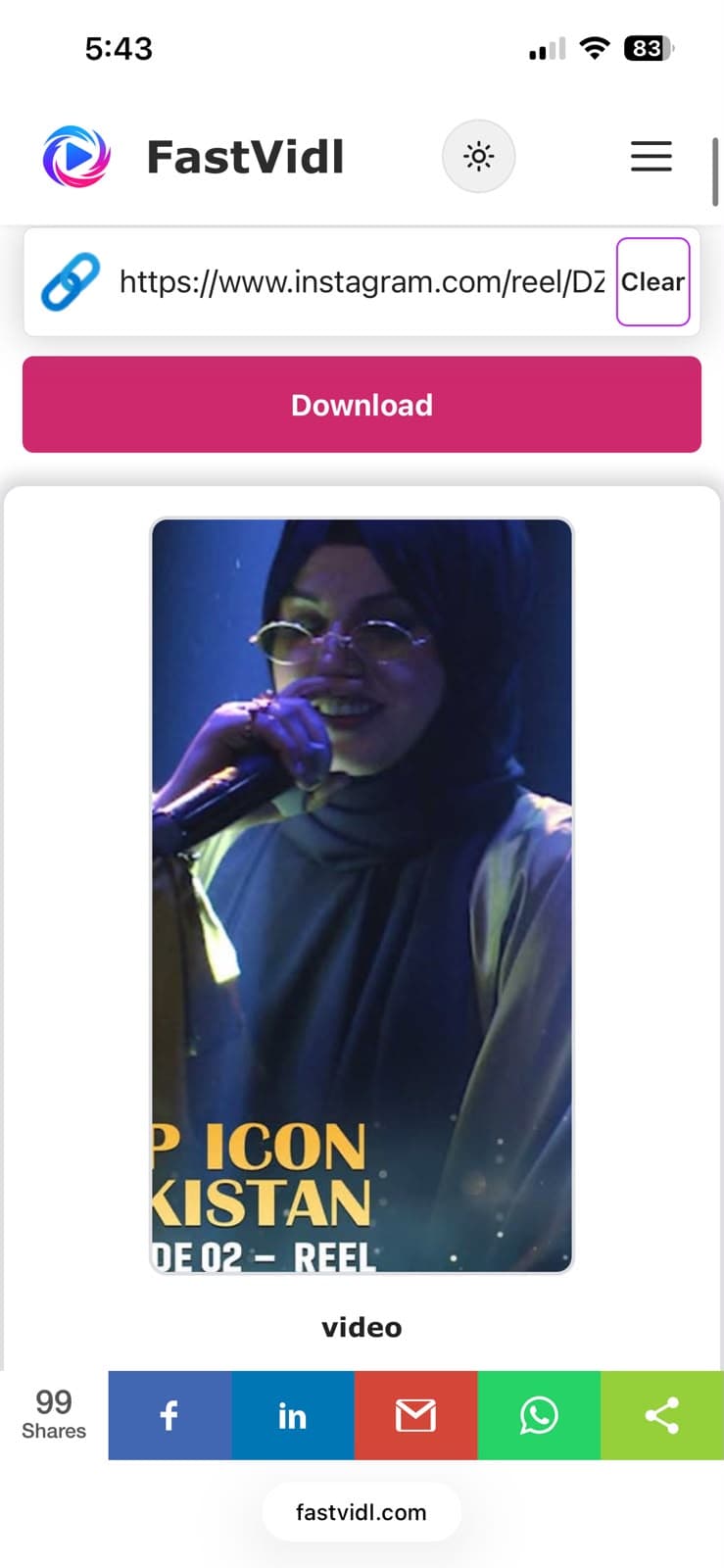
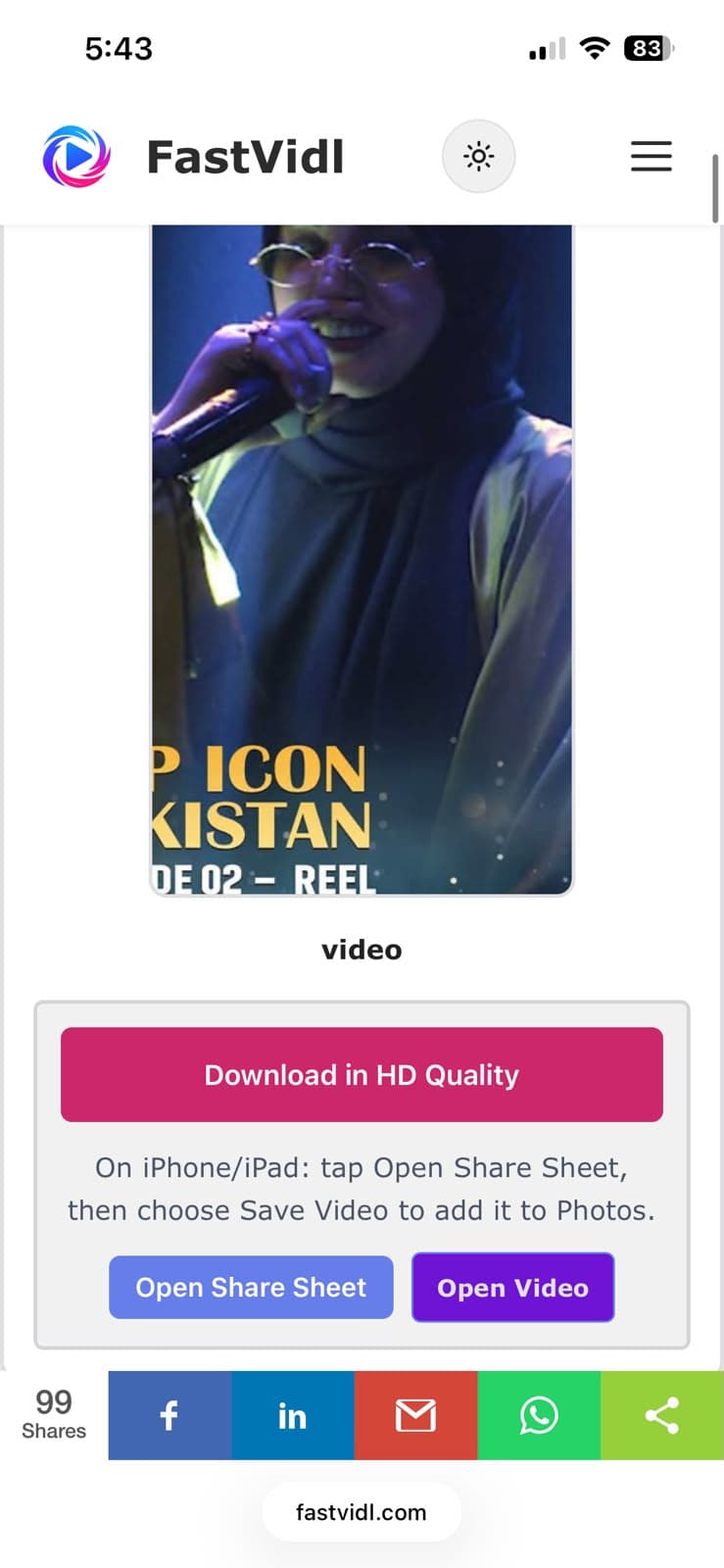
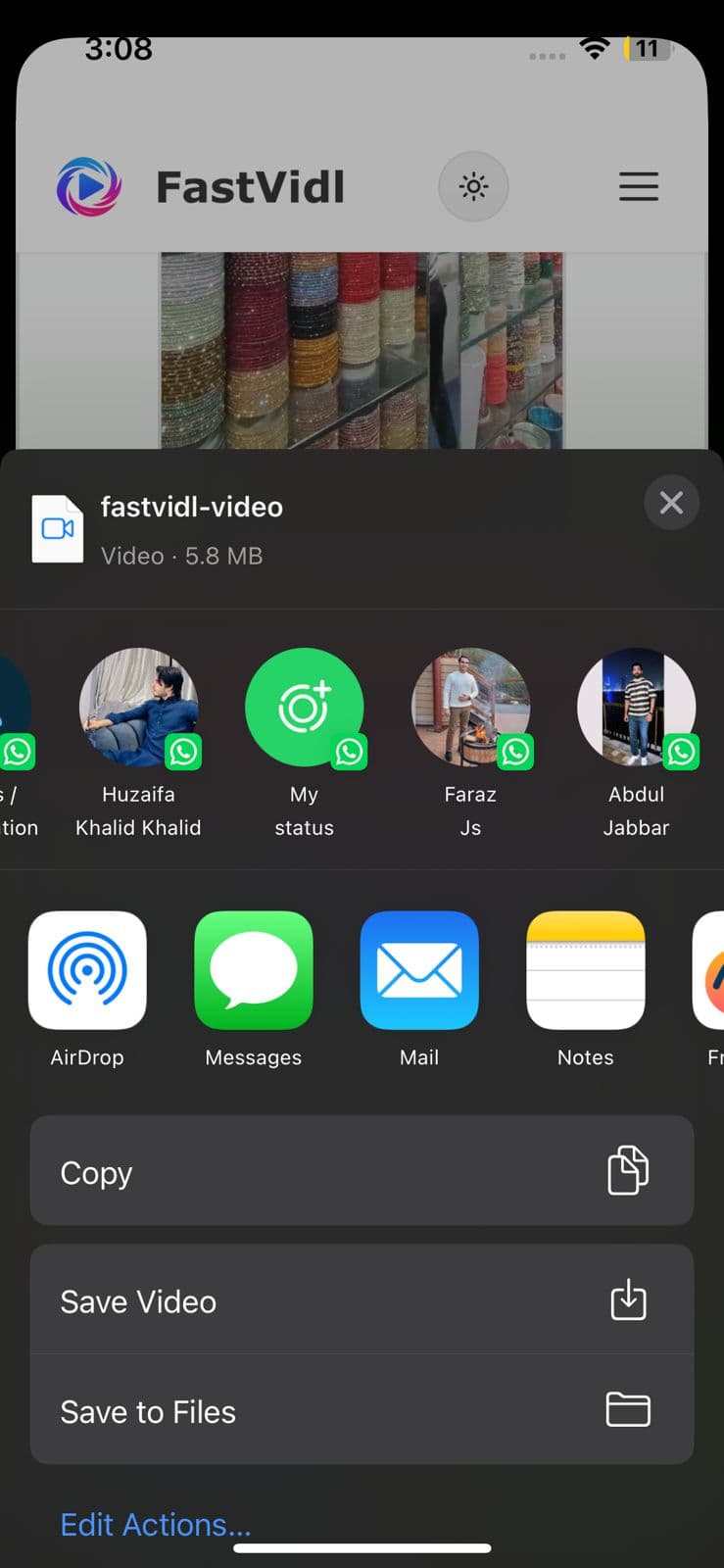
Copy the post link from Instagram, open this page in Safari, paste, and download. Tap the image preview or use Share to save to Photos.
On Android
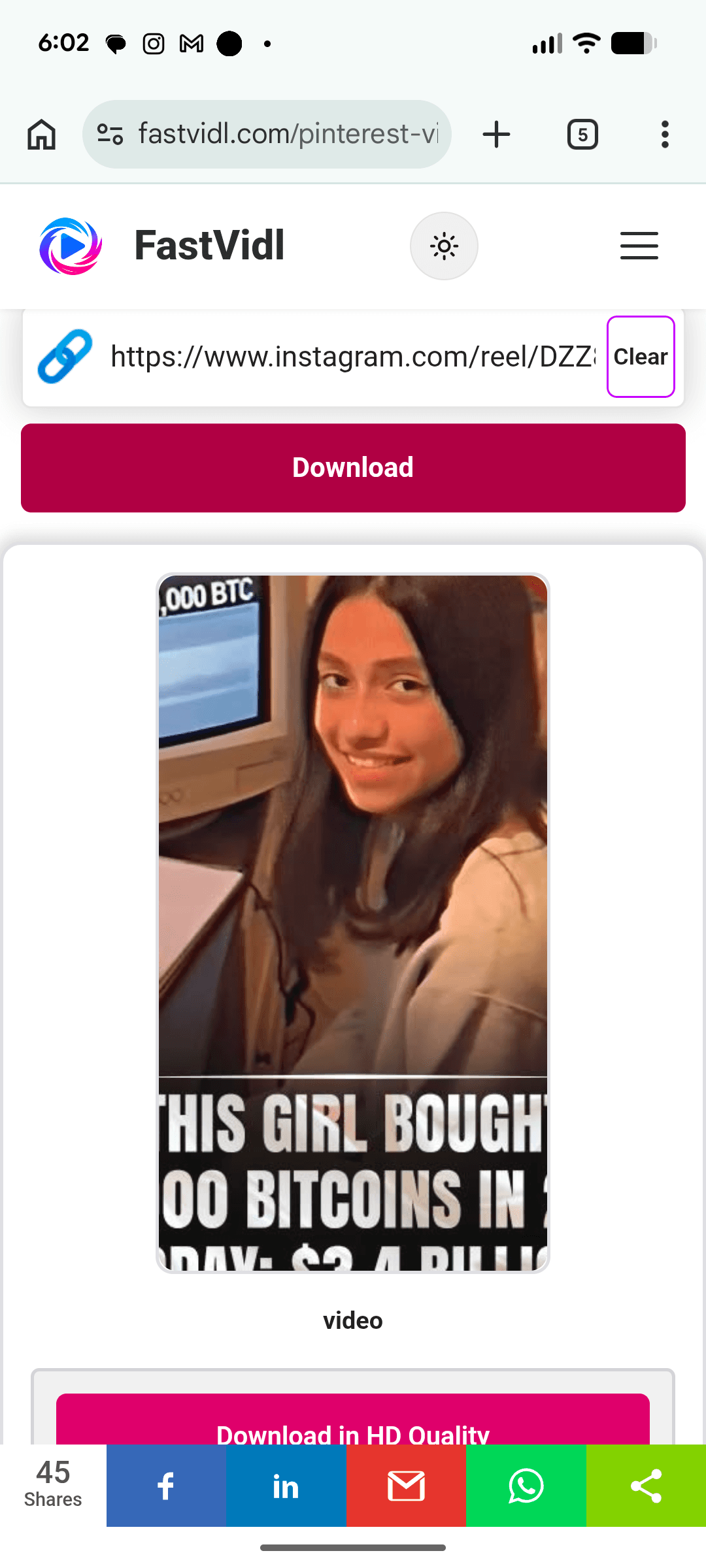
Copy the link, open this page in Chrome, paste, and download. Images usually save to Downloads and show up in your gallery.
On Windows or Mac
Copy the post URL from Share or the browser address bar, paste it here, and click Download.
Which links work?
FastVidl accepts standard public post URLs (instagram.com/p/…). For carousel posts, copy the link from the specific slide you want. A single post link may only return one image. Private accounts and close friends posts are not supported.
For multi-image carousel tips, see our guide to downloading carousel photos on your phone.
Image quality and formats
FastVidl saves the image file Instagram serves for that post, typically full-size JPG. We do not re-compress the file or add a watermark. What you get is the resolution Instagram exposes for that public post.
Troubleshooting
- Private account: Only public posts can be fetched.
- Video post: Use our Instagram Video Downloader instead.
- Wrong carousel slide: Open the slide first, then copy link from Share.
Is it legal to download Instagram photos?
Personal offline reference is generally acceptable; republication or commercial use requires permission. See our disclaimer.
Frequently asked questions
Our testing notes
In April 2026 we tested public photo posts and carousel slides on desktop Chrome and mobile Safari. Single-image posts usually resolved in under 10 seconds.
We re-run these checks monthly on real devices. Read how we test FastVidl for devices, browsers, and pass/fail criteria.