
Written by Raja Jahangir (SEO & Growth Specialist). Powered by Auroxa Tech. Last Updated: 12 May 2026
Table of Contents
- What Actually is the Instagram Cache?
- Signs That Your Instagram Cache is Full
- How to Clear Instagram Cache on iPhone (iOS)
- How to Clear Instagram Cache on Android
- Will Clearing the Cache Delete My Photos or Messages?
- A Smarter Way to Manage Your Instagram Content
- Meet the Team Behind FastVidl
- Conclusion
- Frequently Asked Questions
Have you ever noticed your phone acting sluggish when scrolling through your feed? Or maybe you just got that dreaded "Storage Almost Full" warning right when you wanted to take a photo.
If you use social media every day, the Instagram app is probably eating up a massive chunk of your phone's memory.
Over time, it stores thousands of tiny files in the background. This hidden data makes your phone run hot and drains your battery.
The good news is that you can fix this problem in less than two minutes. In this guide, I will show you exactly how to clear Instagram cache on iPhone and Android devices. We will free up your storage space and get your phone running fast again.
What Actually is the Instagram Cache?
Before we start deleting things, let's talk about what the cache actually is. Think of it as a temporary storage locker for the app.
Every time you look at a photo, watch a Reel, or visit someone's profile, Instagram saves a tiny copy of that data on your phone. It does this so the next time you look at that same post, it loads instantly without needing to download it from the internet again.
While this sounds like a helpful feature, it quickly gets out of hand. If you spend hours scrolling, your phone ends up hoarding gigabytes of temporary junk files that you will never look at again.
Once your device's storage is fully optimized and free of corrupt temporary data, browsing media-heavy profiles becomes noticeably smoother. This makes it the perfect time to grab multi-image sets easily, which you can do by reading our guide on how to download an Instagram carousel (multiple photos) on phone.
Signs That Your Instagram Cache is Full
How do you know if it is time to do a cleanup? Your phone will usually give you a few obvious hints. Here are the most common red flags to watch out for:
- The app takes forever to open: If you are staring at the Instagram logo for more than a few seconds, the app is struggling to load its heavy background files.
- Videos keep buffering: When your cache is completely stuffed, the app has no room to load new Reels smoothly.
- Your phone storage is in the red: If you check your device settings and see Instagram taking up 3GB, 5GB, or even 10GB of space, it is definitely time for a reset.
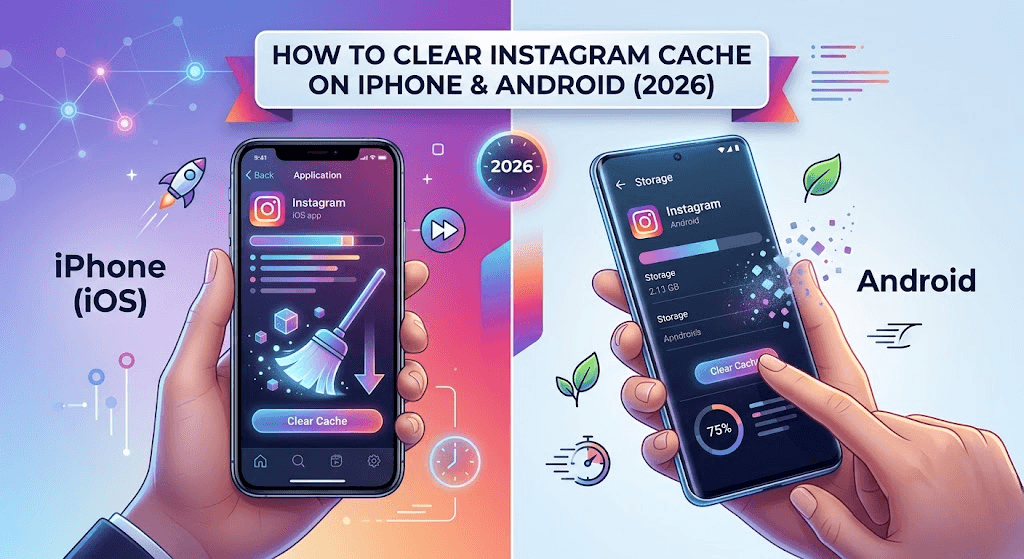
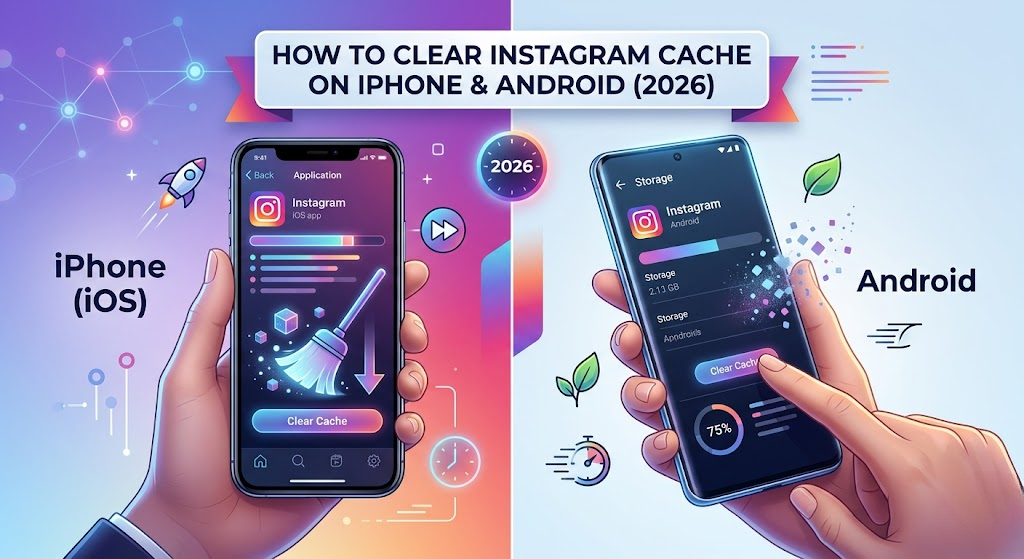
How to Clear Instagram Cache on iPhone (iOS)
Apple devices are incredibly secure, but they have one annoying quirk. iOS does not give you a simple "Clear Cache" button for third-party apps like Instagram.
To clear the junk files on an iPhone, you essentially have to remove the app and download it again. Here is exactly how to do it.
Method 1: Delete and Reinstall the App
This is the most effective way to wipe the cache completely clean.
- Open the Settings app on your iPhone.
- Scroll down and tap on General, then select iPhone Storage.
- Wait a few seconds for the list of apps to load, then find and tap on Instagram.
- You will see a button that says Delete App. Tap it, and confirm your choice.
- Once the app is gone, head over to the App Store, search for Instagram, and download it again.
When you log back in, you will notice that the app feels much faster, and you have magically gained back a lot of storage space.
Method 2: Offload the App
If you do not want to fully delete the app, Apple offers an "Offload" option.
- Go back to Settings > General > iPhone Storage and tap on Instagram.
- Tap the Offload App button.
- This removes the main app data but keeps your login info and personal documents safe.
- Tap the app icon on your home screen to redownload it.
Note: Offloading does not clear as much junk as a full deletion, but it is a good quick fix if you are in a hurry.
How to Clear Instagram Cache on Android
If you are an Android user, you are in luck. The Android operating system gives you direct control over your app storage. You can clear the cache in just a few taps without ever needing to uninstall the app.
Follow these simple steps:
- Open the Settings app on your Android device.
- Scroll down and tap on Apps (or "Apps & Notifications" depending on your phone model).
- Find Instagram in your list of installed apps and tap on it.
- Tap on the Storage or Storage & Cache option.
- You will see two buttons: "Clear Data" and "Clear Cache". Tap on Clear Cache.
Warning: Do not tap "Clear Data" unless you want to be completely logged out and have all your local app settings erased. "Clear Cache" is the safe button that only deletes the temporary junk.
Will Clearing the Cache Delete My Photos or Messages?
This is the number one fear most people have before pressing the delete button. Let me put your mind at ease. No, clearing your cache will not delete your personal account data.
Your uploaded photos, Reels, follower list, and Direct Messages are not stored locally on your phone's hard drive. All of that information is safely stored on Instagram's cloud servers. As long as you remember your password, everything will be exactly where you left it when you log back in.
The only thing you might lose are half-finished "Drafts" saved directly to your phone. If you have an important Reel in your drafts, publish it or save it to your phone before clearing the cache.
A Smarter Way to Manage Your Instagram Content
Constantly clearing your cache is a good habit, but there is a smarter way to manage your phone's memory. Instead of letting Instagram hoard thousands of hidden files just because you liked a few videos, why not keep only the media you actually care about?
If you see an amazing video or a funny Reel that you want to keep, you don't need to save it inside the app. You can download the actual MP4 file directly to your camera roll. Just copy the video link and paste it into our free FastVidl Instagram Video Downloader.
By saving videos directly to your gallery, you can watch them offline anytime without relying on a bloated app cache. If you specifically want to save high-quality photos, you can also use our FastVidl Instagram Photo Downloader to grab the full-resolution image in seconds.
If clearing the cache does not fix the problem, you might be dealing with a different issue. Read our guide on Instagram action block and how to fix it.
Meet the Team Behind FastVidl
FastVidl was built by a dedicated team focused on modern video downloading workflows. By combining technical precision with search expertise, we keep the platform fast, secure and free.
Raja Jahangir: SEO & Growth Expert — Bringing 3 years of SEO experience, Raja helps keep FastVidl user-centric and privacy-focused. View Author Profile Powered by Auroxa Tech.
Conclusion
Dealing with a slow, lagging phone is incredibly frustrating, especially when you just want to browse your social media in peace. By taking two minutes out of your month to clear your Instagram cache, you can drastically improve your phone's performance. Android users can simply hit the clear button in their settings, while iPhone users just need to do a quick delete and reinstall.
Make this quick cleanup a part of your monthly digital routine. Your phone's battery life, storage capacity, and overall speed will definitely thank you for it.
For public Instagram reels, try the free Instagram reel downloader.
Frequently Asked Questions
How often should I clear my Instagram cache?
For most regular users, clearing the cache once a month is the perfect balance. If you are a heavy user who spends multiple hours a day watching Reels, you might want to do it every two weeks to keep your phone running smoothly.
Does clearing the cache log me out of Instagram?
If you are on Android and only tap "Clear Cache", you will stay logged in. However, if you tap "Clear Data" on Android, or if you use an iPhone and delete the app, you will be logged out and will need to enter your username and password again.
Will I lose my saved posts and bookmarks?
No. Your saved posts and bookmarks are linked to your Instagram account on their cloud servers, not your phone's physical storage. They will all be there when you open the app again.
Why is my Instagram storage still high after clearing the cache?
If you cleared the cache and the app is still huge, you might have multiple accounts logged in, or you might have lots of unpublished drafts. For iPhones, the only way to truly shrink the file size is to fully delete the app and reinstall it from the App Store.
Have more questions? Visit our complete FAQ page.