
Written by Raja Jahangir (SEO & Growth Specialist). Powered by Auroxa Tech. Last Updated: 14 May 2026
Table of Contents
- Why Does Pinterest Save GIFs as Static Pictures?
- The Hidden Agenda: Why Social Apps Block Downloads
- The Instagram Carousel Problem (And How We Solve It)
- The Best Fix: Bypass the App Entirely
- How to Save Pinterest GIFs as Videos on Android
- How to Save Pinterest GIFs as Videos on iPhone
- Why You Should Never Use Screen Recording
- How to Download Animated Pins on a Desktop Computer
- Meet the Team Behind FastVidl
- Conclusion
- Frequently Asked Questions
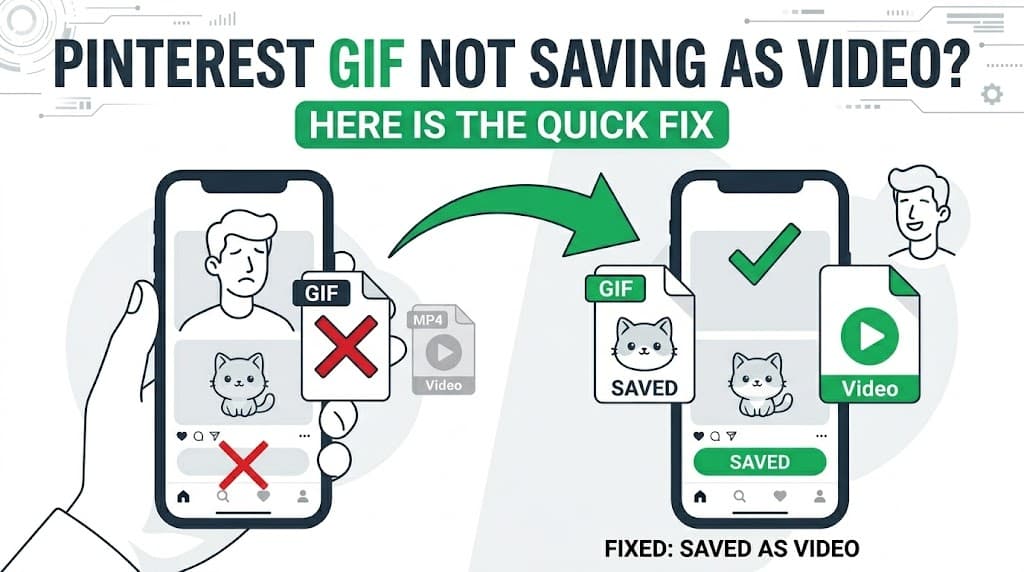
Pinterest GIF Not Saving as Video? Here is the Quick Fix
You are scrolling your feed late at night and spot the absolute best animated meme, a cool aesthetic loop, or a quick DIY video. You want to send it to your group chat immediately.
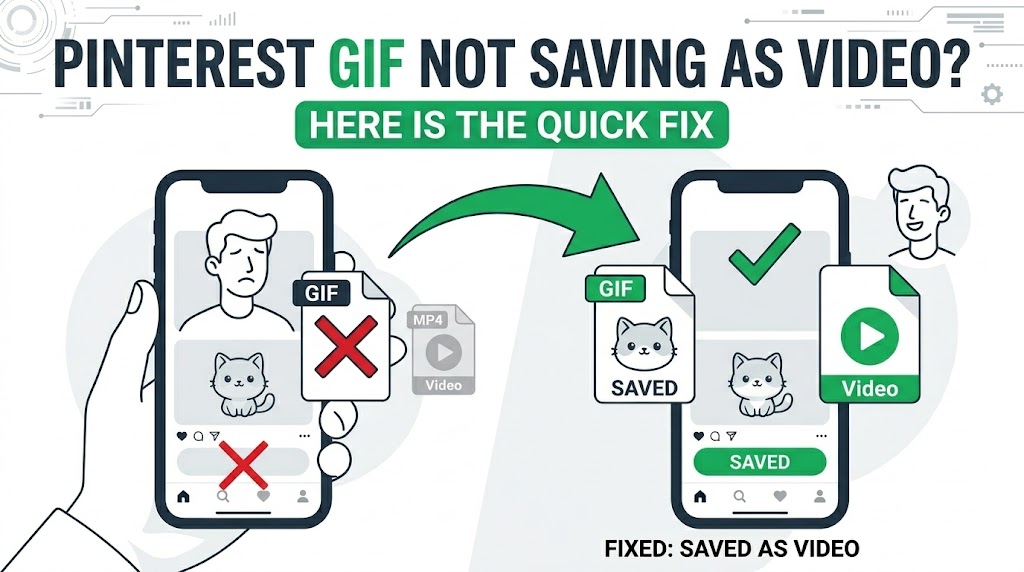
So, you tap the three little dots in the corner and hit the download button. You open your phone's gallery expecting a moving video, but instead, you are staring at a flat, lifeless photo.
It is incredibly frustrating. You want the animation, but your phone only gives you a single frozen frame.
Do not worry, your phone is completely fine. Social media platforms simply make it incredibly difficult to save media to your personal device. They want to keep you trapped inside their apps.
We see this exact same annoying behavior across other platforms too. For example, wanting to save a swipeable post on Instagram is a massive headache because they hide the original files.
In this guide, I will explain exactly why your moving pins are turning into static photos. More importantly, I will show you the exact steps to bypass these restrictions so you can save high-quality moving files in seconds.
Why Does Pinterest Save GIFs as Static Pictures?
To fix this annoying problem, we first need to understand what the app is actually doing behind the scenes. Pinterest processes different file types in very specific ways.
When a creator uploads a GIF or a short video, the platform creates a "thumbnail" for it. This thumbnail is just a regular, flat photo of the very first frame of the video.
When you use the native "Download Image" button inside the app, the system gets confused. It completely ignores the moving video file.
Instead, it just grabs that flat thumbnail picture and sends it to your phone. The app is literally programmed to only hand you a static JPG or PNG file.
The Hidden Agenda: Why Social Apps Block Downloads
You might be wondering why a billion-dollar tech company cannot program a working download button. The truth is, they know exactly what they are doing.
Platforms like Pinterest make their money by keeping your eyes on their screen. The longer you scroll, the more advertisements they can show you.
If they let you download cool GIFs and videos directly to your phone, you would watch them offline. You would share the actual video file in your text messages instead of sharing a link to their website.
By making the download process messy and giving you static images, they force you to come back to their platform. It is a smart business move, but it is terrible for the user experience.
Successfully converting dynamic loops ensures they play smoothly in your local phone gallery. If you want to step up your archiving game and grab entire collections of these creative assets simultaneously, follow our walkthrough on how to save a Pinterest board for offline viewing on iPad & iPhone.
The Instagram Carousel Problem (And How We Solve It)
This restriction is not just a Pinterest problem. Almost every major app plays this exact same game with your favorite content.
Let's look at Instagram as the perfect example. Have you ever found an amazing swipeable post containing eight different wallpapers or a step-by-step recipe?
The native Instagram app makes it impossible to download a full carousel at once. There is no button to save those multiple pictures to your camera roll.
You are forced to take a screenshot of the first slide, swipe, take another screenshot, and repeat the process. Then you have to manually crop out your battery icon and the comment section for every single picture.
This ruins the image quality and takes way too much time. That is exactly why we built a better way.
By using a tool like our FastVidl Instagram Swipeable Post Downloader, you can bypass the app completely. It acts as the ultimate, one-click solution. You just paste the post link, and our web tool extracts every single high-quality photo in the carousel instantly.
The Best Fix: Bypass the App Entirely
Just like the Instagram workaround, the best way to fix your Pinterest issue is to stop using the official app for downloads. You have to go straight to the source.
Our web-based downloading tool does not care about app restrictions. It simply reads the public web address of the pin, locates the hidden MP4 or GIF file, and pulls it out for you.
This method is incredibly safe. You do not have to install any weird software on your phone, and you never have to type in your passwords.
Everything happens inside your regular web browser. Let's walk through the exact steps for your specific phone.
How to Save Pinterest GIFs as Videos on Android
Android devices have a very open file system. This makes saving videos directly to your gallery an absolute breeze.
Follow these quick instructions to get your moving files:
- Grab the Link: Open your Pinterest app and find the animated pin. Tap the Share button (the icon that looks like a paper airplane or three dots).
- Copy It: Tap the Copy Link option from the menu that pops up.
- Open Chrome: Go back to your home screen and open Google Chrome or your favorite browser.
- Use the Tool: Head over to our FastVidl Pinterest Animation Saver.
- Paste and Fetch: Paste your copied link into the large search box and hit the download button.
- Save to Gallery: The tool will find the moving file. Tap the final download button, and the MP4 will automatically save to your phone's "Downloads" folder.
You can now open your gallery app and watch the video loop perfectly.
How to Save Pinterest GIFs as Videos on iPhone
Apple iPhones have a slightly stricter security setup, but the process is still very fast. You just have to use the native Files app.
Here is exactly how to do it on iOS:
- Copy the Pin Link: Open Pinterest, tap the Share icon on your chosen GIF, and select Copy Link.
- Launch Safari: Close the app and open your Safari web browser.
- Visit the Downloader: Go to our secure FastVidl Pinterest Animation Saver.
- Paste the Link: Tap the white input box, paste your link, and press the button to process the file.
- Download the File: The web tool will generate a video file. Tap Download.
- Move to Camera Roll: On an iPhone, web downloads go to your native Files app first. Open the Files app, tap the new video, hit the Share icon in the bottom corner, and select Save Video.
Your animation is now sitting safely in your main Photos app.
Why You Should Never Use Screen Recording
When people get frustrated with static images, they usually try to just screen-record the Pinterest app. I highly recommend that you avoid doing this.
First of all, screen recording captures everything on your screen. You will end up recording your battery percentage, the time, and the Pinterest menu buttons.
If you try to crop the video later, you will lose a massive amount of resolution. The video will look completely blurry and pixelated.
Secondly, GIFs run at very specific frame rates. Your phone's screen recorder might not match that frame rate, resulting in a choppy, laggy video that hurts your eyes to watch.
Using a browser tool gives you the clean, original file without any of that messy cropping. (By the way, if you are having similar quality issues on Facebook, you can use our FastVidl FB Story Downloader to get clean files there, too).
How to Download Animated Pins on a Desktop Computer
Are you trying to save your favorite GIFs to your laptop or PC? The process is actually even easier on a desktop computer.
You do not need to worry about moving files from different folders. You just need your computer's web browser.
- Open Pinterest on your computer and click on the animated pin.
- Look at the address bar at the very top of your browser. Highlight the entire URL and copy it.
- Open a new tab and go to a web downloader.
- Paste the URL into the search box and click download.
- The MP4 or GIF file will drop directly into your computer's default "Downloads" folder.
This is a fantastic way to build a folder full of video references or design inspiration right on your hard drive.
For regular Pinterest images and wallpapers, see how to download HD wallpapers from Pinterest on iPhone.
If you are having trouble saving any Pinterest content at all, read why Pinterest is not letting you save pictures.
Meet the Team Behind FastVidl
FastVidl was built by a dedicated team focused on modern video downloading workflows. By combining technical precision with search expertise, we keep the platform fast, secure and free.
Raja Jahangir: SEO & Growth Expert — Bringing 3 years of SEO experience, Raja helps keep FastVidl user-centric and privacy-focused. Connect on LinkedIn Powered by Auroxa Tech.
Conclusion
Getting a boring, flat photo when you really wanted a funny moving GIF is a huge letdown. Social media apps design their software to keep you online, which means their download buttons are often completely useless.
Fortunately, you do not have to play by their rules. By skipping the app and using a dedicated web tool, you take full control over your media.
Whether you are trying to save an entire swipeable post on Instagram or a cool animation on Pinterest, web downloaders are the smartest choice. They are fast, secure, and always give you the highest quality files possible.
Next time you see a pin that you just have to keep, do not bother with the native save button. Copy the link, use your browser, and get exactly what you want.
For public Pinterest pins and videos, try the Pinterest video downloader.
Frequently Asked Questions
Why does the Pinterest app only save the first frame of a GIF?
The app's native code is designed to capture static images for quick saving. When it encounters a video or GIF file, it defaults to downloading the cover thumbnail to save data and processing power.
Can I turn the static picture back into a video?
No, you cannot. Once the app saves the file as a JPG or PNG, all the moving data is permanently lost. You must go back to the original link and download the actual video file using our web tool.
Is a downloaded GIF saved as an MP4 video file?
Yes, in most cases. Modern social media platforms automatically convert heavy GIF files into lightweight MP4 video files to make their websites load faster. When you use our downloader, you will usually receive an MP4 file.
Are web-based downloading tools safe for my phone?
Absolutely. Good browser-based tools like FastVidl is 100% safe because they do not require you to install anything. They never ask for your passwords, and they do not have access to your private phone data.
Will downloading videos fill up my phone storage quickly?
Short animated clips and GIFs usually take up very little space (often less than 2MB). However, if you download hundreds of them, they will eventually add up. It is a good habit to clean out your camera roll once a month.
Can I download an animated pin that is set to a secret board?
No. FastVidl can only access public files. If a pin is hidden on a secret board or uploaded by a private account, the tool will not be able to read the link and extract the video.
Have more questions? Visit our complete FAQ page.