
Written by Raja Jahangir (SEO & Growth Specialist). Powered by Auroxa Tech. Last Updated: 15 May 2026
Table of Contents
- Why You Need to Move Large Videos to Your PC
- How to Transfer Large Video from iPhone to PC via USB
- How to Transfer Large Videos from iPhone to PC Without Cable
- How to Transfer Large Videos from iPhone to PC Free
- How to Transfer Large Videos from iPhone to PC Without Losing Quality
- Why You Should Never Use Email or WhatsApp
- How to Transfer Large Files from iPhone to PC Wirelessly
- Meet the Team Behind FastVidl
- Conclusion
- Frequently Asked Questions
You just spent the afternoon downloading some amazing high-definition videos to your phone. Maybe you saved a massive, hour-long Facebook Live stream, or a bunch of 4K aesthetic clips for a video edit you are working on.
Everything looks great until your phone suddenly freezes. A really annoying pop-up appears on your screen: "iPhone Storage Full”.
High-quality videos take up a massive amount of space. If you do not move those files off your phone, you will not be able to take new photos or download new apps.
Social media apps already make saving media a huge headache. For example, think about how the native Instagram app makes it impossible to download a full carousel at once. You cannot just hit a button and save ten pictures to your camera roll.
You are usually forced to take a dozen messy screenshots and crop them manually. That is exactly why we built our FastVidl Instagram Photo/Carousel Downloader. It acts as the ultimate, one-click solution to grab those hidden files instantly.
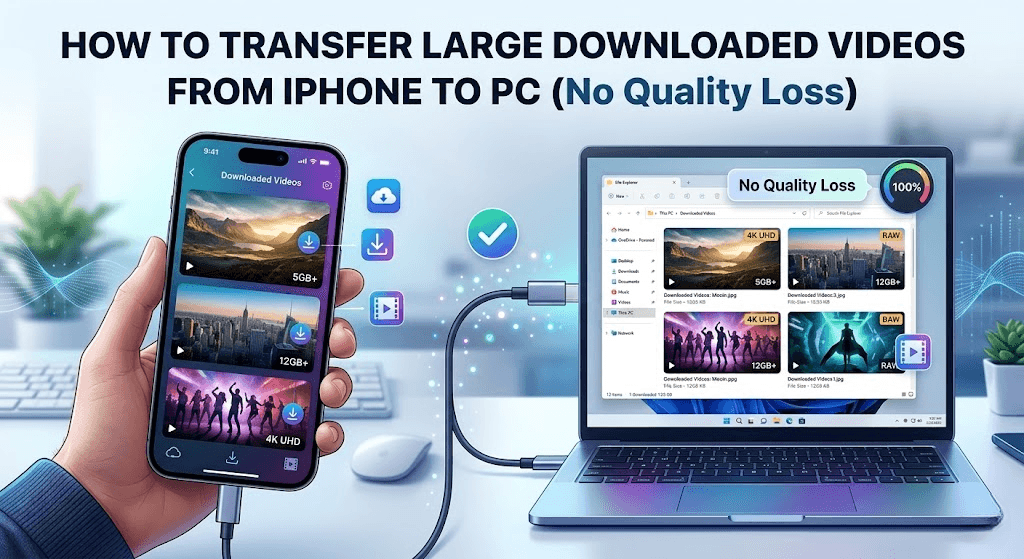
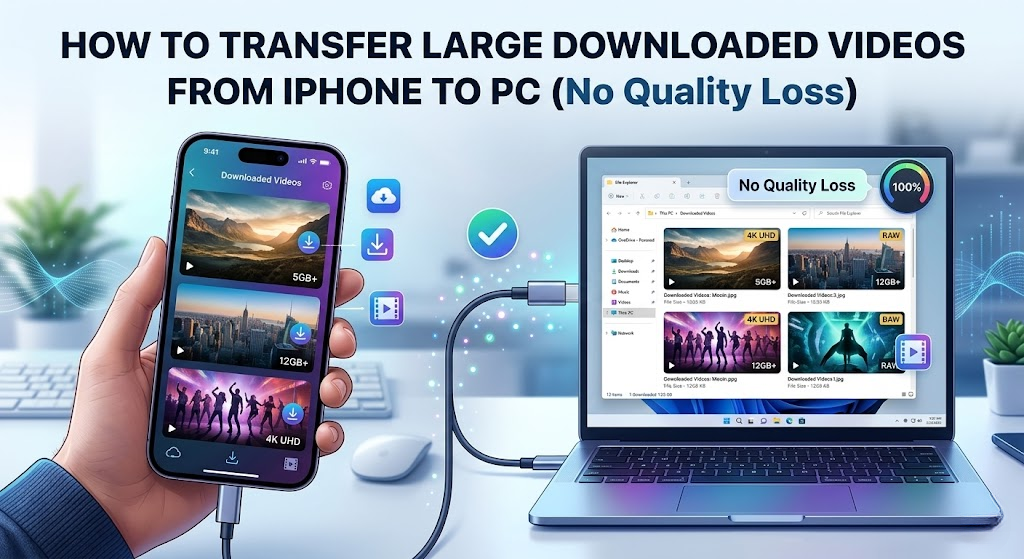
Once you actually get those large files onto your phone, you need a smart way to manage them. In this guide, I will show you the absolute best ways to transfer large downloaded videos from your iPhone to your PC without losing a single pixel of quality.
Why You Need to Move Large Videos to Your PC
Keeping large MP4 files on your phone is a bad idea for a few reasons. First, they eat up your storage space incredibly fast. A single 60-minute video can easily take up 2GB of memory.
Second, if your phone gets lost or broken, those downloaded videos are gone forever. Moving them to a computer acts as a safe, permanent backup.
Finally, a PC is just a better place to handle large media. If you downloaded a massive tutorial using our FastVidl Facebook Video Downloader, you will probably want to watch it on a big screen or edit it using professional desktop software.
How to Transfer Large Video from iPhone to PC via USB
If you have a massive video file, you cannot rely on a slow internet connection to move it. Using a physical cable is always the fastest and most reliable option.
You do not even need iTunes to do this on a Windows PC. Here are the exact steps:
- Connect the Cable: Plug your iPhone into your computer using an official Apple USB or USB-C cable.
- Trust the Computer: Unlock your iPhone screen. A message will pop up asking if you "Trust This Computer". Tap Trust and type in your phone passcode.
- Open File Explorer: On your PC, open the standard File Explorer (the folder icon on your taskbar).
- Find Your iPhone: Look on the left-side menu and click on This PC. You will see your Apple iPhone listed under "Devices and drives."
- Locate the Videos: Double-click on the Apple iPhone icon. Go into Internal Storage, then the DCIM folder.
- Copy and Paste: Look through the folders for your downloaded videos. Right-click the video, select Copy, and then paste it anywhere on your computer's hard drive.
How to Transfer Large Videos from iPhone to PC Without Cable
If you do not have a cable lying around, Apple's built-in cloud service is a great backup plan. You just need to make sure your videos are synced to your iCloud account first.
This method requires a decent Wi-Fi connection. If you are trying to move a 4K video over a weak cellular signal, it will take hours.
Here is how you pull those files down to your PC:
- Check Your Settings: On your iPhone, go to Settings, tap your name at the top, and select iCloud. Make sure "Photos" is turned on so your videos back up automatically.
- Go to iCloud.com: Open a web browser on your Windows PC and go to iCloud.com.
- Log In: Sign in with the exact same Apple ID you use on your phone.
- Open Photos: Click on the Photos icon on the website dashboard.
- Download: Find your downloaded video, select it, and click the little cloud icon with a downward arrow in the top right corner. The video will drop straight into your computer's Downloads folder.
How to Transfer Large Videos from iPhone to PC Free
If your iCloud storage is completely full, Google Drive is an amazing free alternative. Every Google account comes with 15GB of free cloud storage, which is plenty of room for a few heavy videos.
This is perfect if you just used a tool like our FastVidl Pinterest Video Downloader to save a bunch of aesthetic background loops and need to move them to your editing software.
- Install the App: Download the Google Drive app from the App Store onto your iPhone.
- Upload the Video: Open the app, tap the big plus (+) icon, and hit Upload. Select "Photos and Videos" and pick the large file you want to move.
- Wait for the Upload: Keep the app open until the upload completely finishes.
- Download on PC: Go to your computer, open a web browser, and log into Google Drive. Right-click your newly uploaded video and select Download.
How to Transfer Large Videos from iPhone to PC Without Losing Quality
A lot of people complain that their videos look blurry after moving them to a computer. This usually happens because they picked the wrong transfer method.
If you use a direct USB cable, your PC pulls the exact, raw file directly from your phone's memory. There is absolutely no compression.
However, if you use a third-party app or a messy wireless transfer, the software might shrink the file to make it move faster. If you want to retain 100% of your resolution, always stick to a physical USB connection or a trusted cloud drive.
Why You Should Never Use Email or WhatsApp
When trying to move a quick video, a lot of people just try to email it to themselves. Do not do this with large downloaded files.
Most email providers, like Gmail, have a strict 25MB file limit. A high-quality video will blow past that limit in about three seconds.
You should also never use WhatsApp or Facebook Messenger to send files to your computer. Messaging apps apply aggressive data compression to media. They will take your beautiful, crisp downloaded video and turn it into a blurry, pixelated mess before it ever reaches your PC.
Moving your large asset files onto a desktop setup ensures your mobile storage stays completely clean. If you notice that the source files you are transferring still look compressed or pixelated regardless of the device you play them on, it's time to diagnose the core issue by understanding why is my downloaded video quality so bad.
How to Transfer Large Files from iPhone to PC Wirelessly
If you absolutely hate cables and you do not want to use cloud storage, you have one more option. You can use a wireless transfer app.
Apps like "Send Anywhere" or "SHAREit" create a direct, invisible Wi-Fi connection between your phone and your computer. You install the app on both devices, enter a quick PIN code, and the files fly across the room wirelessly.
Just make sure both your phone and your PC are connected to the exact same Wi-Fi router for it to work properly.
Before transferring files, make sure you downloaded them in HD. Read our guide on why downloaded video quality is sometimes bad.
If your iPhone is running low on space before the transfer, clearing your Instagram cache can quickly free up several gigabytes.
Meet the Team Behind FastVidl
FastVidl was built by a dedicated team focused on modern video downloading workflows. By combining technical precision with search expertise, we keep the platform fast, secure and free.
Raja Jahangir: SEO & Growth Expert — Bringing 3 years of SEO experience, Raja helps keep FastVidl user-centric and privacy-focused. View Author Profile. Powered by Auroxa Tech.
Conclusion
Running out of space on your iPhone because you saved too many cool videos is a good problem to have. It just means you need a solid workflow to keep your files organized.
Do not let your favorite downloads sit on your phone until the memory is completely choked. Grab a USB cable, connect it to your Windows PC, and drag those massive files onto your hard drive.
Whether you are using a cable, iCloud, or Google Drive, moving your files guarantees they stay safe and high-quality forever. Next time you use a web tool to grab a massive HD file, you will know exactly how to clear it off your phone in seconds. Happy organizing!
For public Instagram reels, try the free Instagram reel downloader.
Frequently Asked Questions
Why won't my iPhone show up on my PC when I plug it in?
This usually happens because you did not tap "Trust This Computer" on your iPhone screen. Unplug the cable, unlock your phone, plug it back in, and watch for the pop-up message. You also need to make sure your iPhone is unlocked during the transfer.
How do I transfer videos larger than 5GB to my computer?
For files that are massive, you should always use a direct USB-C or Lightning cable. Cloud uploading a 5GB file will take far too long and might crash if your internet connection dips.
Why do my iPhone videos look weird or not play on Windows?
Apple records video in a special format called HEVC (High-Efficiency Video Coding). Older Windows computers do not know how to read this format. You can fix this by downloading the free "HEVC Video Extensions" from the Microsoft Store.
Can I use AirDrop to send a video to a Windows PC?
No, AirDrop is an exclusive Apple feature. It only works between iPhones, iPads, and Mac computers. It will not work on a standard Windows laptop.
Does transferring a video to my PC delete it from my phone?
No. Copying a video through a USB cable or uploading it to Google Drive simply creates a duplicate file on your computer. If you want to free up space on your iPhone, you must manually delete the video from your camera roll after the transfer is complete.
Have more questions? Visit our complete FAQ page.