
Written by Raja Jahangir (SEO & Growth Specialist). Powered by Auroxa Tech. Last Updated: 14 May 2026
Table of Contents
- The Short Answer: Yes, But There is a Catch
- How to Download Your OWN Facebook Live Videos
- How to Save Someone Else’s Facebook Live Video
- How to Download Live Streams on a Desktop Computer
- Why You Should Never Screen Record a Live Stream
- Can You Download Private Facebook Live Videos?
- Troubleshooting: Why is My Link Not Working?
- Meet the Team Behind FastVidl
- Conclusion
- Frequently Asked Questions
You just finished watching an amazing Facebook Live from your favorite creator. Or maybe you just hosted a highly successful, hour-long Q&A session for your own business page.
Now the broadcast is officially over. You want to save that video to your phone so you can re-watch it offline or chop it up into smaller, shareable clips.
But you stare at your screen and quickly realize there is absolutely no download button.
Social media companies do this on purpose. They want to trap your best content on their platform so you have to keep logging in. We see this frustrating behavior everywhere.
For example, think about how the native Instagram app makes it impossible to download a full carousel at once. You cannot just save ten pictures to your camera roll. You are forced to take a dozen messy screenshots and crop them later.
That is exactly why we built tools like our FastVidl Instagram Photo/Carousel Downloader. It acts as the ultimate, one-click solution to grab those hidden files instantly.
The exact same annoying rule applies to Facebook Live streams. The app wants to keep the video locked away. But do not worry. You can definitely download these broadcasts, and I will show you exactly how to do it safely and quickly.
The Short Answer: Yes, But There is a Catch
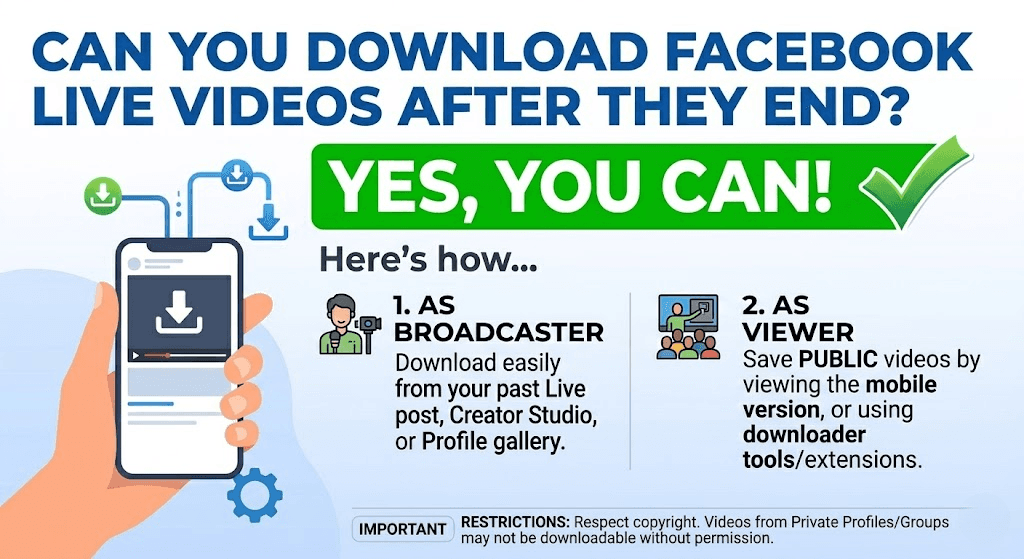
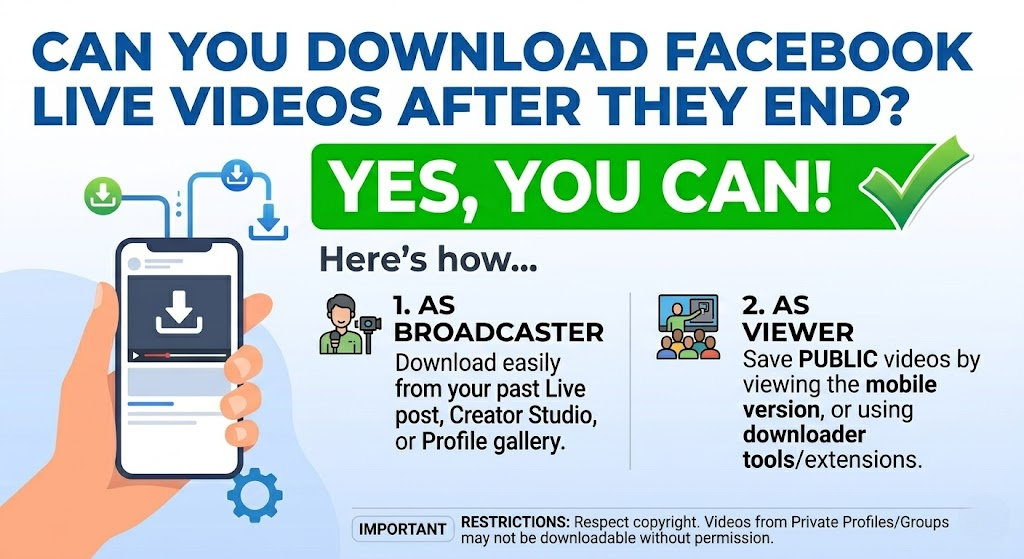
You can absolutely download a completed live stream. However, you are at the mercy of the person who originally filmed it.
When a Facebook Live broadcast ends, the creator is asked what they want to do with the footage. They can either delete it forever or publish it to their timeline.
If they hit delete, that video file is gone. Nobody on the internet can save it.
If they choose to publish it, the broadcast becomes a regular, permanent Facebook video. Once it hits their public timeline, you can easily grab it using a smart web tool.
How to Download Your OWN Facebook Live Videos
If you were the person hosting the live stream, Facebook actually gives you a secret built-in option to save your hard work.
They hide this feature in your account settings. Here is how you find it:
- Open Facebook on your computer and go to your profile page.
- Click on the Videos tab and locate your recent live broadcast.
- Click on the video to open it.
- Click the three little dots in the top right corner of the video player.
- Select the Download Video option from the dropdown menu.
The MP4 file will automatically start downloading to your computer's hard drive. However, be aware that this native option sometimes severely compresses the video. If you want the raw, high-definition file, you should use an external tool instead.
Once you successfully catch a live broadcast, you might want to store it permanently on your phone for offline viewing. To do this seamlessly, follow our step-by-step guide on how to save FB videos to your camera roll.
How to Save Someone Else’s Facebook Live Video
If you want to save a long podcast, an interview, or a church service from another page, the Facebook app will not give you a download button. You have to bypass their system entirely.
The smartest way to do this is by using a dedicated browser tool. It is fast, highly secure, and does not require you to install any weird software on your phone.
Web tools reach directly into the Facebook servers to pull out the clean video file. Let's look at how to do this on different devices.
Step-by-Step for Android Users
Android phones have a very open and relaxed file system. This makes grabbing a long live stream incredibly easy.
Follow these simple steps:
- Find the Finished Video: Open your Facebook app and locate the published live stream.
- Copy the Link: Tap the Share button below the video, then tap Copy Link.
- Open Chrome: Go back to your home screen and open Google Chrome.
- Visit the Tool: Go to our secure FastVidl Facebook Video Downloader.
- Paste and Search: Paste your copied link into the white search box and hit the download button.
- Save to Gallery: The tool will generate a high-quality video file. Tap the final download button, and the MP4 will automatically save to your phone's internal storage.
You can find the full broadcast sitting right in your Android Gallery app.
Step-by-Step for iPhone Users
Apple devices have stricter security rules, but the process is still very straightforward. You just have to use the native Files app to handle the download.
Here is exactly what you need to do:
- Grab the URL: Open the Facebook app, tap the Share icon on the finished live video, and hit Copy Link.
- Launch Safari: Close Facebook and open your Safari web browser.
- Use the Downloader: Head over to our FastVidl Facebook Video Downloader.
- Paste the Link: Tap the input box, paste your URL, and press the button to process the file.
- Download the File: The web tool will extract the video. Tap Download.
- Move to Camera Roll: On iOS, web downloads go to your native Files app first. Open the Files app, tap your new video, hit the Share icon in the bottom corner, and select Save Video.
Now you can watch that hour-long broadcast right from your main Photos app without needing an internet connection.
How to Download Live Streams on a Desktop Computer
Sometimes, you want to save a massive live stream to your computer so you can edit it using professional software. This process is the easiest of them all.
You do not have to worry about moving files between apps. You just need your trusty computer browser.
- Open Facebook on your Mac or PC and find the finished live video.
- Look up at the address bar at the very top of your screen. Highlight the entire URL and copy it.
- Open a new tab and navigate to a secure web downloader.
- Paste the URL into the search box and click process.
- The large MP4 file will drop directly into your computer's default "Downloads" folder.
Why You Should Never Screen Record a Live Stream
When people cannot figure out how to save a video, they usually panic and hit the screen record button on their phone. For a quick 10-second clip, this is fine. For a live stream, it is a terrible idea.
Live broadcasts are notoriously long. Sometimes they run for an entire hour or more.
Screen recording a 60-minute video will absolutely destroy your phone's storage limit. It creates a massive, bloated file that will slow your device down.
Furthermore, you will record every single messy detail on your screen. You will capture your battery warnings, incoming text messages, and the annoying Facebook comment section scrolling by.
Using a browser tool gives you the clean, original video file. You get perfect audio and video without any of the on-screen clutter.
Can You Download Private Facebook Live Videos?
Sometimes a live broadcast happens inside a closed, private Facebook group. Regular downloaders cannot access these videos because they are hidden behind a privacy wall.
However, you are not entirely out of luck. You just need a more specialized tool.
You can use our tool to safely extract videos from private groups you belong to. This specific tool requires a few extra steps involving the page source code on your computer, but it bypasses the privacy blocks perfectly.
Troubleshooting: Why is My Link Not Working?
If you paste a link into the downloader and it throws an error message, do not panic. Check these two common issues.
First, make sure the video is actually finished. You absolutely cannot download a live stream while it is currently happening in real-time. The server needs the broadcast to end before it can package the file.
Second, check the privacy settings. If the creator changed the video settings from "Public" to "Friends Only" after the broadcast ended, standard public tools will not be able to see it.
Conclusion
Missing out on a great live stream is annoying, but knowing how to save them for later changes your entire experience. You no longer have to worry about losing access to great interviews, tutorials, or events.
Stop fighting with the native app restrictions and stop filling up your hard drive with terrible screen recordings.
Next time a fantastic broadcast ends, just copy the link and use our trusted web tool. You will have the full, high-quality video sitting in your gallery ready to watch on your own schedule.
If your downloaded Live video has no audio, see why downloaded Facebook video has no sound.
The same method works for regular Facebook videos too. Read our guide on saving Facebook videos to camera roll.
Meet the Team Behind FastVidl
FastVidl was built by a dedicated team focused on modern video downloading workflows. By combining technical precision with search expertise, we keep the platform fast, secure and free.
Raja Jahangir: SEO & Growth Expert — Bringing 3 years of SEO experience, Raja helps keep FastVidl user-centric and privacy-focused. Connect on LinkedIn Powered by Auroxa Tech.
After a public live video is available as a replay, our Facebook video downloader.
Frequently Asked Questions
Can I download a live stream while it is still broadcasting?
No, you cannot. A downloading tool needs a completed file to work properly. You must wait for the creator to end the broadcast and publish the final video to their timeline before you can grab the link.
Do creators get a notification if I download their finished live video?
No, Facebook does not track or notify users when a video is downloaded through a third-party web tool. Saving a video for your personal, offline viewing is a completely private action.
Does downloading a long live stream take a long time?
It depends entirely on your internet connection and the length of the video. An hour-long HD broadcast will be a very large file. Try to connect to a strong Wi-Fi network before hitting the download button so you do not use up your cellular data.
Why is the downloaded live video slightly blurry?
Live streams are highly dependent on the original creator's internet connection. If their Wi-Fi was weak during the broadcast, the footage will be blurry. The downloader tool simply fetches exactly what was recorded on the server.
Will this method fill up my phone's storage?
Long videos take up a significant amount of space. A 45-minute live stream can easily be 1GB or more in size. Make sure you have plenty of free space on your phone before attempting to save long broadcasts.
Have more questions? Visit our complete FAQ page.