
Written by Raja Jahangir (SEO & Growth Specialist). Powered by Auroxa Tech. Last Updated: 12 May 2026
Table of Contents
- The Hidden Reason Your Downloaded Videos Are Muted
- Copyright Rules and Missing Audio Tracks
- The Ultimate Quick Fix for Silent Facebook Videos
- A Quick Detour: The Instagram Carousel Problem
- How to Download Facebook Videos With Sound on iPhone
- How to Download Facebook Videos With Sound on Android
- Why Screen Recording Ruins Your Audio
- Check Your Phone's Audio Codec Support
- Meet the Team Behind FastVidl
- Conclusion
- Frequently Asked Questions
Have you ever found a hilarious Facebook video, downloaded it, and rushed to send it to your group chat? You wait for your friends to laugh, but instead, they ask why the video is completely silent.
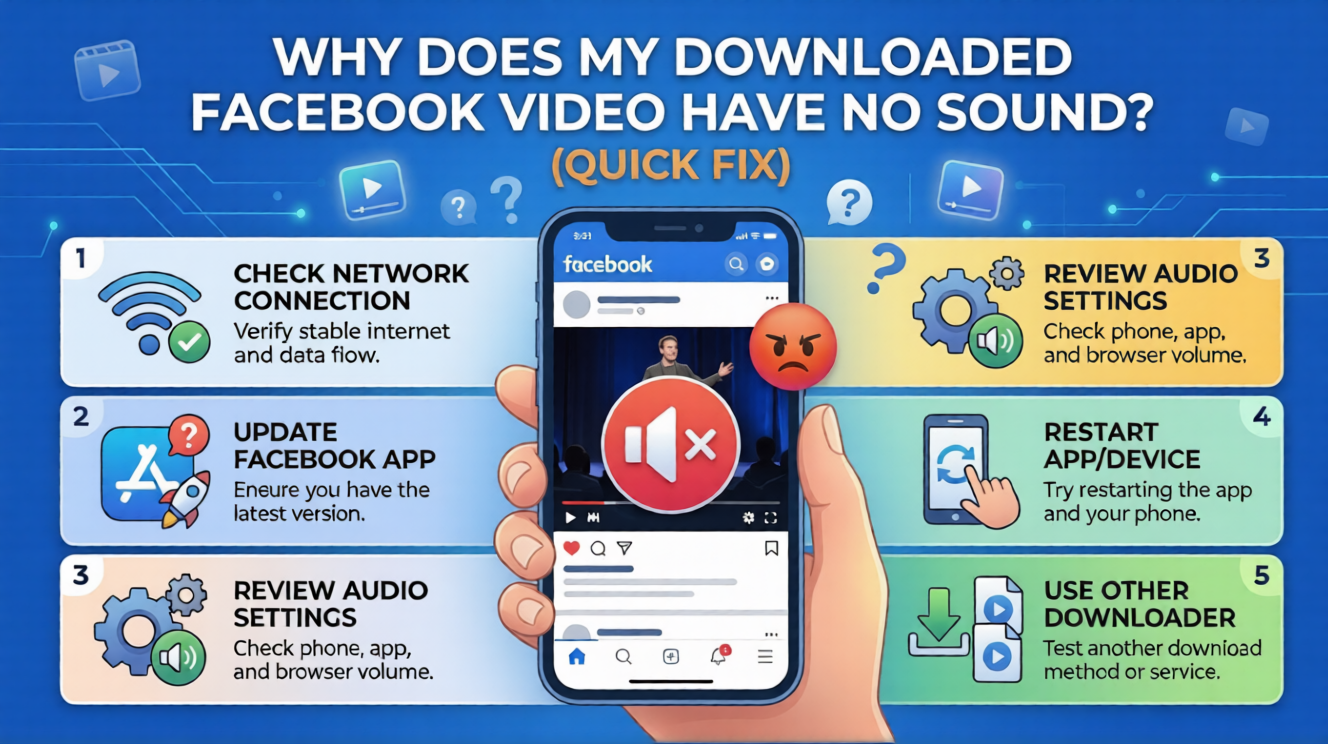
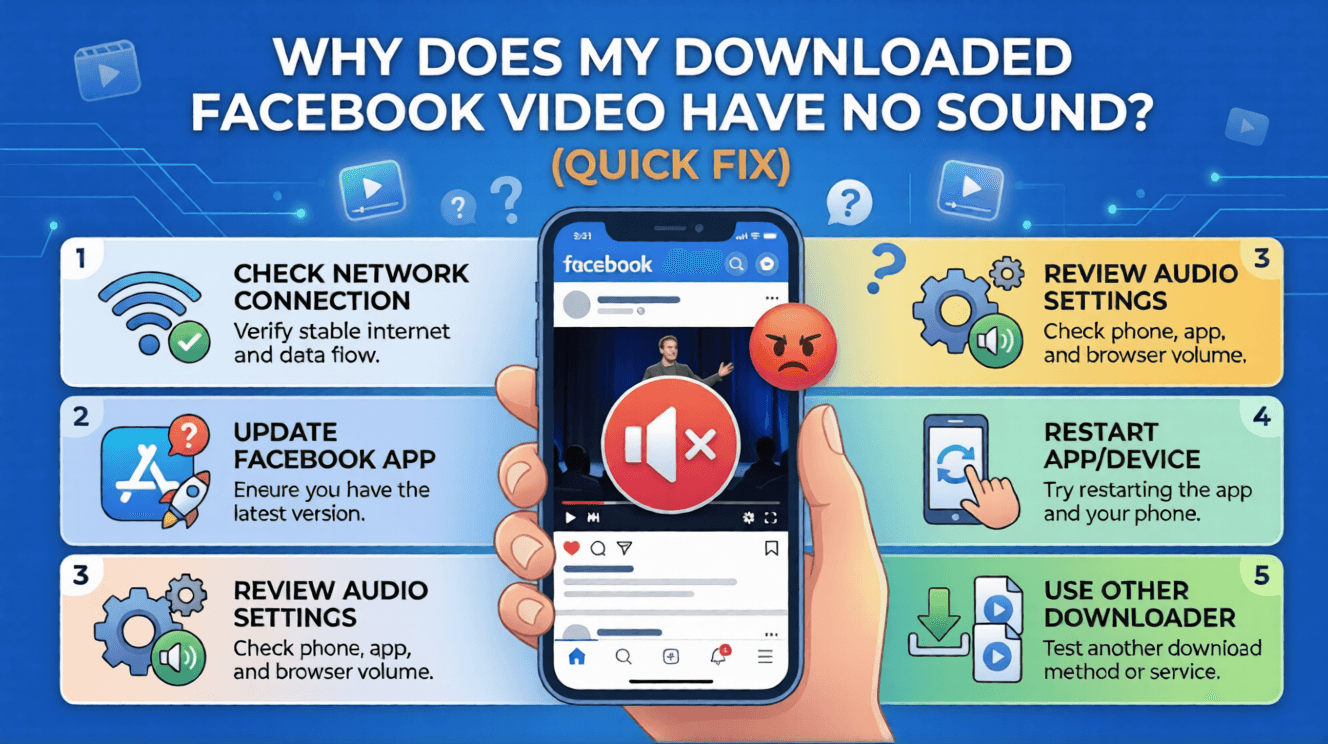
It is incredibly frustrating to watch a great clip with absolutely no sound. You might even think your phone speakers are broken or that you pressed the wrong button.
Do not worry, your phone hardware is completely fine. The problem is actually how social media apps handle file saving behind the scenes. Big platforms hate it when you take their content offline, so they make the process as difficult as possible.
You see this across all apps when you try to save media. For instance, you might experience the frustrating problem of wanting to save a swipeable post on Instagram, only to realize the app blocks you. Just like how the native Instagram app makes it impossible to download a full carousel at once, Facebook purposefully splits its audio and video files to confuse basic downloaders.
In this guide, I will show you exactly why your downloaded Facebook videos are muted. More importantly, I will give you the exact steps to fix it so you always get perfect audio.
Resolving local media player configurations will instantly bring back the full audio depth of your saved files. However, if your primary issue isn't audio loss but rather the visual clarity dropping heavily right after you upload your own content, take a look at our fix for why are my Facebook videos blurry after uploading.
The Hidden Reason Your Downloaded Videos Are Muted
To fix the problem, we first need to understand what Facebook is doing behind the scenes. When you watch a high-definition video on the Facebook app, you are actually streaming two separate files.
Facebook uses a system that stores the moving pictures on one server track and the sound on a completely different track. When you hit play, the app quickly stitches them together on your screen.
When you use a cheap or outdated downloading app, it only knows how to grab the main video track. It leaves the audio track behind completely. This is why you end up with a high-quality video that plays in dead silence.
To get both the picture and the sound, you need a modern tool. You need something that knows how to grab both tracks and merge them into one solid file before sending it to your phone.
Copyright Rules and Missing Audio Tracks
Sometimes, the downloading tool is not actually the problem. Social media platforms have extremely strict copyright detection systems running at all times.
If a creator uploads a video using a popular copyrighted song, Facebook might flag it. To avoid getting sued by record labels, the platform will automatically mute the audio track on that specific video.
Before you get frustrated with your download, go back to the Facebook app. Watch the original video again and make sure your volume is turned all the way up.
If the original video on your timeline has no sound, your downloaded copy will not have sound either. You cannot download audio that no longer exists on the platform.
The Ultimate Quick Fix for Silent Facebook Videos
If you want to guarantee that your videos always have sound, you need to stop using random apps from the app store. Many of those free apps are outdated and cannot read Facebook's split-track system.
The absolute best way to save a video is by using a secure, web-based downloading tool. Web tools are updated constantly on the server side, meaning they always know how to merge the audio and video tracks perfectly.
Instead of fighting with broken apps, simply copy the video link from Facebook. Then, paste it into our dedicated FastVidl Facebook Video Downloader.
Our tool works entirely in your browser. It does the heavy lifting to combine the audio and visual files, delivering a crisp, loud, and high-quality MP4 file straight to your phone's gallery.
A Quick Detour: The Instagram Carousel Problem
Since we are talking about the headaches of saving social media content, we have to mention Instagram. Saving media correctly is a massive pain across every major platform.
Have you ever found a great swipeable post with ten different photos that you wanted to save? You probably quickly realized that the native Instagram app makes it impossible to download a full carousel at once.
Taking ten separate screenshots is a terrible option. It ruins the image quality and fills your camera roll with junk that you have to crop later. You need a better method.
Our FastVidl Instagram Photo/Carousel Downloader acts as the ultimate, one-click solution. You just paste the link to the post, and the tool fetches every single high-definition photo in the carousel instantly.
How to Download Facebook Videos With Sound on iPhone
Apple devices are famously strict about how files are saved. However, using a web tool makes it incredibly easy to get your Facebook videos saved with perfect sound. Follow these easy steps for your iOS device:
- Find the Video: Open the Facebook app and locate the video you want. Tap the Share button and select Copy Link.
- Open Safari: Go to your home screen and open the Safari browser.
- Use the Tool: Head over to our FastVidl Facebook Video Downloader. Paste the copied link into the white search box.
- Download the File: Tap the download button. The tool will merge the audio and video tracks for you.
- Save to Camera Roll: The MP4 file will download into your iPhone's Files app. Open the Files app, tap the video, press the Share icon, and select Save Video.
Now, open your main Photos app. Play the video, turn your volume up, and enjoy the perfect sound.
How to Download Facebook Videos With Sound on Android
Android phones have a much more relaxed file system. This makes saving merged video files directly to your gallery a very fast process.
If you use a Samsung, Google Pixel, or any other Android device, just follow this routine:
- Copy the Link: Open Facebook, tap the three dots above the video, and hit Copy Link.
- Open Chrome: Launch Google Chrome or your preferred internet browser.
- Paste and Fetch: Go to the FastVidl Facebook Video Downloader and paste the link into the input box.
- Hit Download: Press the download button. The tool will process the tracks and prepare a single file.
- Check Your Gallery: The video will automatically download directly to your phone's memory.
You can simply open your Android Gallery or Google Photos app. Find your "Downloads" folder, tap the new video, and you will hear the audio loud and clear.
Why Screen Recording Ruins Your Audio
When people get annoyed by silent downloads, they often try to just screen-record the video instead. This is usually a very bad idea for a few different reasons.
First, screen recordings capture all the messy menus, battery icons, and comment sections on your screen. Second, the audio is rarely captured correctly.
Many phones are set up to only record microphone audio during a screen recording. This means the phone ignores the internal video sound and instead records the physical noise in your room.
If your phone is on silent mode, the screen recorder might just output a completely muted file anyway. Bypassing this mess by using a proper web downloader is always the smarter choice.
Check Your Phone's Audio Codec Support
There is one last rare issue that might be causing your silent videos. Sometimes, the video actually has an audio track attached to it, but your phone simply does not know how to play it.
Digital audio comes in many different formats, called codecs. If you use a very old smartphone, its default gallery app might not support the newest audio codecs used by Facebook. If you suspect this is the case, try downloading a third-party video player from your app store, like VLC Media Player. VLC is famous for being able to play absolutely any file type.
Open your downloaded Facebook video inside the VLC app. If the sound suddenly works, you know your phone's default gallery app was the problem all along.
If the video plays but looks low quality, read our guide on why Facebook videos are blurry and how to fix it.
Once the sound issue is resolved, you may want to save the Facebook video to your camera roll for offline access.
Meet the Team Behind FastVidl
FastVidl was built by a dedicated team focused on modern video downloading workflows. By combining technical precision with search expertise, we keep the platform fast, secure and free.
Raja Jahangir: SEO & Growth Expert — Bringing 3 years of SEO experience, Raja helps keep FastVidl user-centric and privacy-focused. View Author Profile Powered by Auroxa Tech.
Conclusion
Finding out your downloaded Facebook video has no sound is annoying, but it is a very common issue. Because the platform splits its audio and video into separate files, cheap apps simply cannot handle the download properly.
By avoiding bad third-party apps and using a dedicated, web-based tool, you can easily force those files back together. This ensures you get a high-quality video that sounds exactly the way it did on your timeline.
Whether you are saving funny Facebook clips or using our tools to grab entire Instagram carousels, doing it through your browser is always the safest bet. Save your videos the right way, and never worry about silent clips again.
If you need to re-download a public Facebook clip with audio intact, use our Facebook video downloader.
Frequently Asked Questions
Can I fix the audio on a video I have already downloaded?
Unfortunately, no. If the video is downloaded without the audio track, that sound data is permanently missing from the file. You cannot add it back later. You will need to delete the silent file and re-download the video using a better web tool.
Why do some Facebook Reels have sound but others do not?
Facebook Reels often use trending music that gets hit with copyright claims. If the original creator did not have the rights to use the song, Facebook will mute the Reel globally. Always check if the Reel has sound on the actual app first.
Do third-party web tools steal my data when I download videos?
No, reputable web-based downloaders are incredibly safe. They do not ask for your Facebook password and they do not require you to log in. They simply act as a bridge between the public video link and your phone's hard drive.
Does downloading a video lower the overall audio quality?
If you use a high-quality downloader, the audio quality should sound exactly the same as it does on the app. However, if you use a screen recorder to capture the video, the audio quality will drop significantly and sound very tinny.
Why does my phone say "Video Format Not Supported" when I try to play it?
This usually means the file downloaded in a format that your specific phone's operating system does not recognize. To avoid this, always try to make sure your downloading tool saves the file in the standard MP4 format, which works on every modern device.
Have more questions? Visit our complete FAQ page.