
Written by Raja Jahangir (SEO & Growth Specialist). Powered by Auroxa Tech. Last Updated: 12 May 2026
Table of Contents
- Why Does Facebook Ruin Your Video Quality?
- How to Stop Facebook from Making Videos Blurry (Step-by-Step Fixes)
- Mobile App vs. Desktop Uploads: Which is Better?
- A Smart Trick: Download High-Quality References
- The "Processing" Waiting Game
- Meet the Team Behind FastVidl
- Conclusion
- Frequently Asked Questions
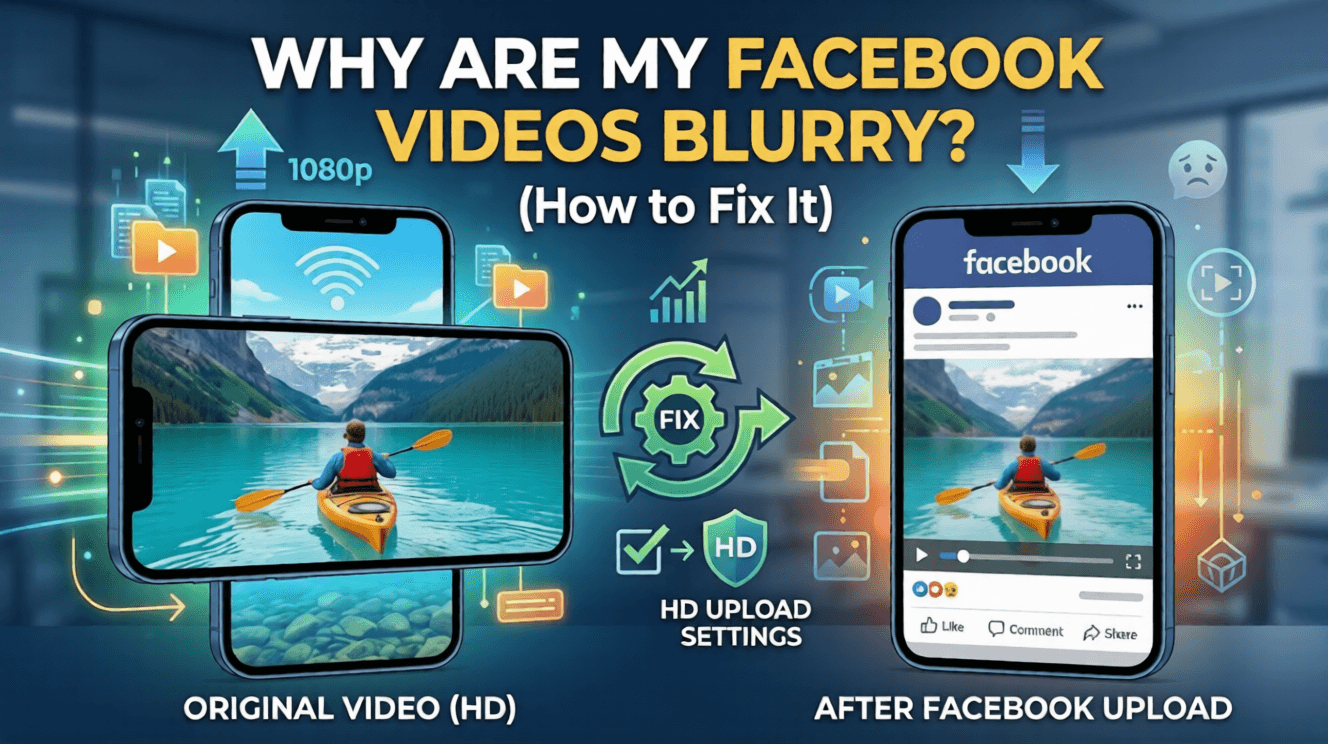
You spend hours shooting the perfect video. You edit it, add your favorite filters, and it looks incredibly sharp on your phone's gallery. Then, you upload it to Facebook. Within seconds, your beautiful, high-definition masterpiece turns into a pixelated, blurry mess.
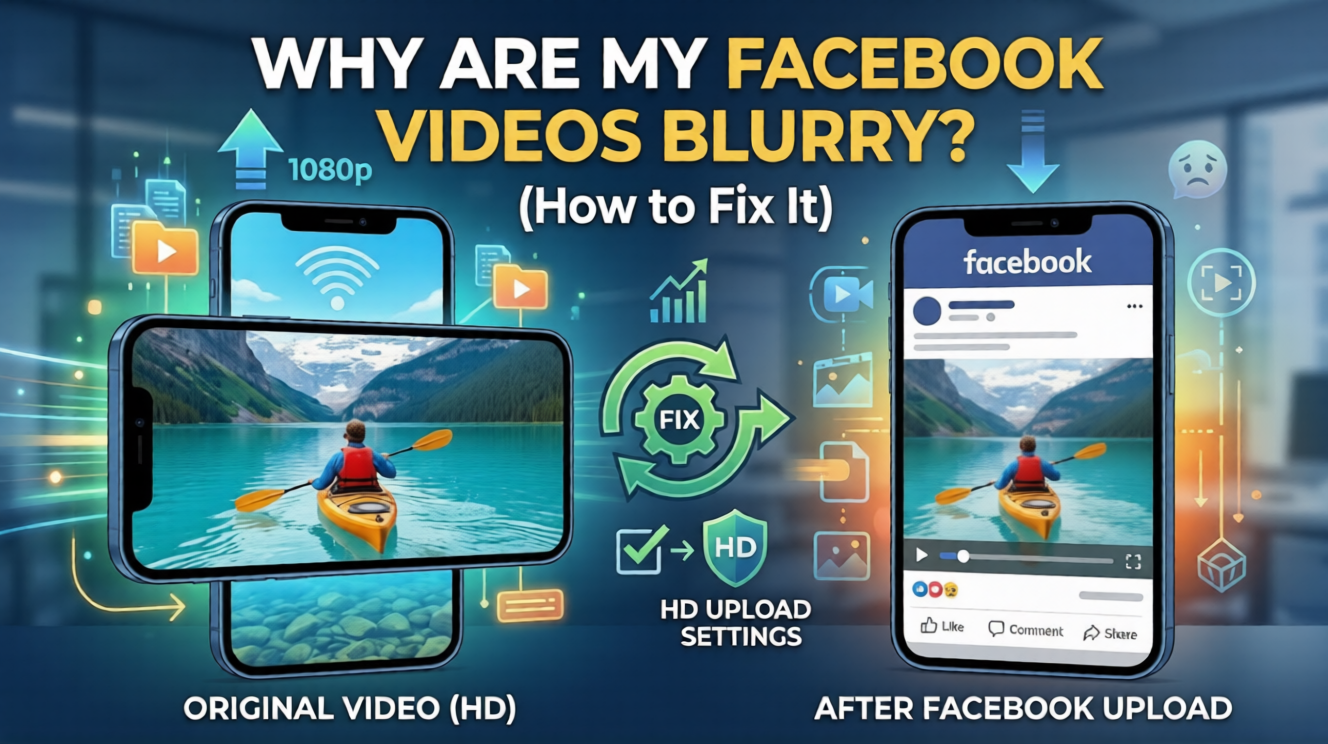
It is incredibly frustrating. You might even wonder if there is something wrong with your phone's camera or your internet connection. Do not worry, your camera is absolutely fine. The problem lies entirely with how Facebook handles media uploads behind the scenes.
In this post, I will explain exactly why this annoying quality drop happens. I will also show you the exact settings you need to change so your videos stay crisp, clear, and professional looking.
Fixing the upload resolution parameters ensures your content looks professional to your audience. However, if the issue isn't with the quality but rather with the platform's video player failing to stream entirely, you can deploy these Facebook videos not playing or loading quick fixes to restore smooth playback.
Why Does Facebook Ruin Your Video Quality?
Facebook has billions of active users scrolling through feeds every day. Every single minute, millions of heavy photos and videos are uploaded to their massive servers.
If facebook kept every single video in its original 4K or 1080p resolution, their data centers would crash almost immediately. To prevent this from happening, they use extreme compression algorithms.
Compression basically shrinks the file size of your video so it takes up less digital space. Unfortunately, this shrinking process destroys the fine details, which is exactly what causes that blurry, washed-out look.
Furthermore, the Facebook mobile app is designed to save your cellular data. If the app thinks you are on a weak data connection, it lowers your upload quality automatically without asking you. The good news is that you can override these aggressive compression settings. You just need to know exactly where to look.
How to Stop Facebook from Making Videos Blurry (Step-by-Step Fixes)
You do not have to settle for low-quality uploads. By tweaking a few hidden settings and changing how you export your files, you can easily beat the algorithm.
Here are the most effective ways to keep your videos looking sharp and professional.
Turn on the "Upload in HD" Setting
Both the Android and iOS Facebook apps have a built-in feature that allows you to upload in high definition. For some odd reason, Facebook usually leaves this turned off by default.
To fix this on your phone, open the Facebook app and go to your Settings & Privacy menu.
Scroll down until you find the Media section. Here, look for the option that says Video Quality or Data Usage.
Make sure the option to upload high-quality video is turned on. You should also select the Optimized setting so the app adapts to your network instead of always forcing a low-resolution upload to save data.
Always Upload on a Strong Wi-Fi Connection
Your internet speed plays a massive role in how Facebook processes your content. If you try to upload a heavy video file on a weak 3G or 4G signal, the app panics. To ensure the upload finishes quickly and does not use all your data, the app compresses the video even more than usual. This is a very common reason why mobile uploads look terrible.
Always try to connect to a strong, stable Wi-Fi network before hitting the post button. This tells Facebook that you have plenty of bandwidth to handle a heavy, high-quality file.
Export with the Correct Video Settings
Sometimes the problem starts before the video even reaches the Facebook app. If you use editing software like CapCut or Premiere Pro, you must export using Facebook's preferred settings.
Facebook is very picky about what file types it likes best. If you give the app a weird format, it will compress it heavily just to make it fit their system.
For the absolute best results, always export your videos in MP4 format. This is the most web-friendly file type available today.
Keep your resolution locked at 1080p. While 4K video is great for your TV or YouTube, Facebook often struggles to process it. Ironically, uploading a 4K video usually results in a much blurrier post than a standard 1080p video.
Finally, use a frame rate of 30fps (frames per second). This is the sweet spot for smooth video playback on social media without making the file size unnecessarily large.
Never Record Directly Inside the App
The camera built directly into the Facebook app is honestly not very good. It does not use the full power of your phone's actual camera hardware. When you record a video directly inside the Facebook app, it applies compression the second you stop recording. You lose a huge amount of quality instantly.
Instead, always use your phone's native camera app to record your videos. This ensures you capture the highest possible quality right from the start. Once the video is safely saved to your phone's gallery, you can then open Facebook and upload the pre-recorded file.
Mobile App vs. Desktop Uploads: Which is Better?
If you are running a professional business page or a creator account, you might want to stop uploading from your phone altogether.
The mobile app is optimized for speed and saving cellular battery. Because of this, it is always looking for excuses to compress your files and save resources.
Uploading from a desktop computer via the Facebook website or Meta Business Suite is a completely different story. Desktop browsers can handle much heavier payloads without triggering that aggressive shrinking process.
If you have a video that absolutely must look perfect, send it to your laptop first. Uploading through your computer's web browser almost guarantees a sharper, cleaner result for your audience.
A Smart Trick: Download High-Quality References
If you are a content creator, one of the best ways to understand what looks good is to study other successful pages. Have you ever seen a competitor's Reel that looks incredibly crisp?
You can actually download their videos to your phone to check their exact visual style and formatting.
Instead of using screen recording, which ruins the quality, you should use a dedicated tool. You can easily grab a pristine copy of any public video by using the FastVidl Facebook Downloader.
This saves the original MP4 file straight to your camera roll so you can study it offline. If you are doing the same research on Instagram, you can use our FastVidl Instagram Video Downloader to safely save Reels in full HD.
Studying high-quality downloads is a fantastic way to figure out what works and improve your own editing techniques.
The "Processing" Waiting Game
There is one more thing you need to know about how Facebook works behind the scenes. This single fact might save you a lot of unnecessary stress.
When you first upload a high-definition video, Facebook wants to get it onto your friends' feeds as fast as possible. To do this, it immediately publishes a low-quality, standard-definition version of your video first.
It does this while the heavy HD version is still processing slowly in the background.
If you watch your video the exact second it goes live, it will probably look terribly blurry. This is completely normal behavior for the platform.
Give the servers a few minutes to catch up. After about five or ten minutes, Facebook will quietly swap out the blurry version for your final, high-definition file. So, before you delete your post in a panic, make a cup of coffee, wait a bit, and refresh your page.
Blurry video often comes alongside audio problems. If your downloaded Facebook video also has no sound, see our guide on why downloaded Facebook video has no sound.
After fixing the quality, you can save Facebook videos to your camera roll.
If the video is blurry AND not loading properly, see our Facebook videos not playing fixes guide.
Meet the Team Behind FastVidl
FastVidl was built by a dedicated team focused on modern video downloading workflows. By combining technical precision with search expertise, we keep the platform fast, secure and free.
Raja Jahangir: SEO & Growth Expert — Bringing 3 years of SEO experience, Raja helps keep FastVidl user-centric and privacy-focused. View Author Profile Powered by Auroxa Tech.
Conclusion
Dealing with blurry videos on Facebook is incredibly annoying, but it is a problem you can easily solve today.
By turning on the HD upload settings, using a strong Wi-Fi connection, and exporting your edits in 1080p MP4 format, you can bypass the worst of the compression algorithms.
Remember to always shoot with your phone's native camera, and be patient while the platform processes your final upload. Follow these simple steps, and your feed will look sharper, more professional, and much more engaging.
For public Facebook videos and reels, try the Facebook video downloader.
Frequently Asked Questions
Why do my Facebook Reels look blurry but my regular videos don't?
Facebook reels are compressed even more aggressively because they are designed for fast, endless scrolling. To fix this, make sure you export your Reels in a 9:16 aspect ratio at exactly 1080p, and avoid adding too many heavy text effects before uploading.
Does Facebook compress 4K video?
Yes, Facebook heavily compresses 4K video files. In most cases, uploading a 4K video will result in a worse-looking final product than uploading a standard 1080p video because the system forces it to shrink down. Stick to 1080p for the most consistent results.
Can I fix a blurry video after it has already been posted?
Unfortunately no, Once a video is processed and published on your timeline, you cannot change its quality or replace the file. You will need to delete the blurry post, fix your settings, and upload the original file again.
Does sharing a video through Messenger reduce the quality?
Yes, Facebook messenger applies its own heavy compression to save network bandwidth. If you want to share a high-quality video with a friend without losing details, it is much better to upload it to a cloud drive like Google Drive or send it as an email attachment.
Have more questions? Visit our complete FAQ page.