
Written by Raja Jahangir (SEO & Growth Specialist). Powered by Auroxa Tech. Last Updated: 12 May 2026
Table of Contents
- Why Are My Facebook Videos Not Playing?
- 5 Quick Fixes for Facebook Videos Not Loading
- The Ultimate Workaround: Download Videos to Watch Offline
- Meet the Team Behind FastVidl
- Conclusion
- Frequently Asked Questions
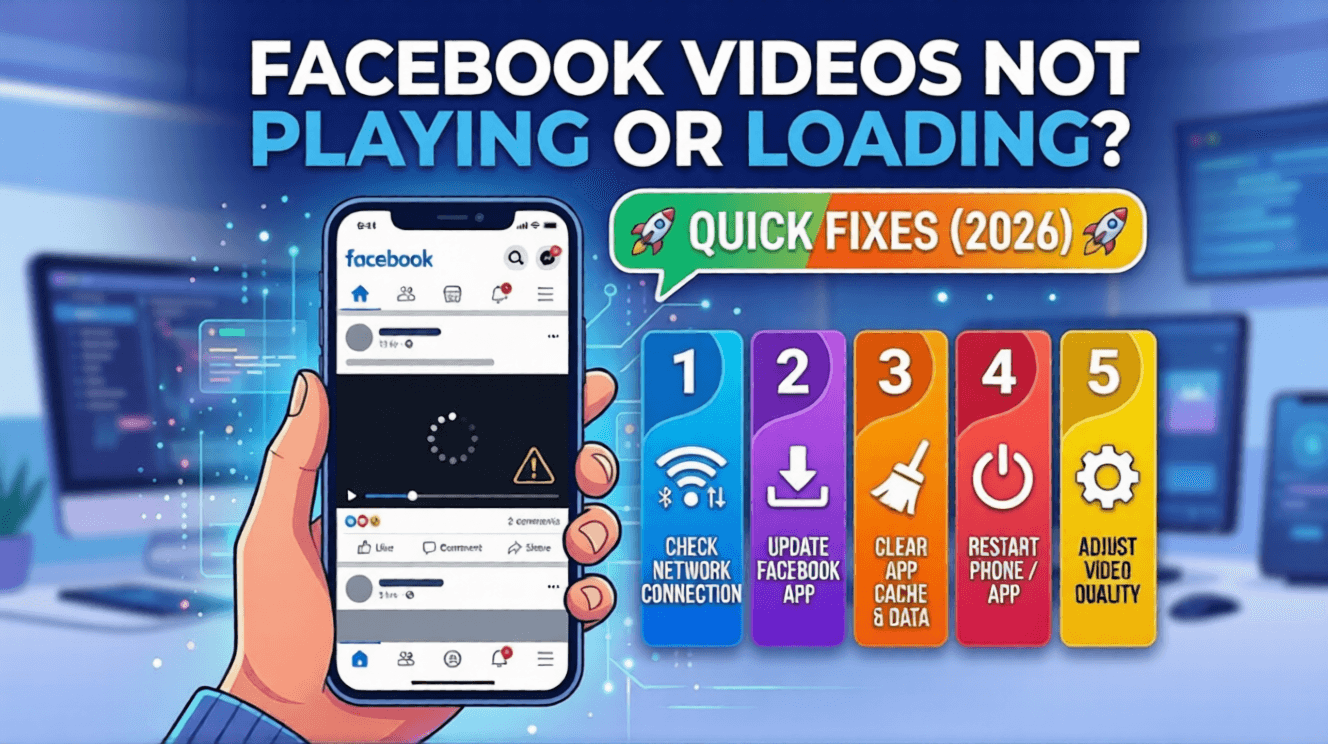
You finally sit down to relax and scroll through your Facebook feed. You see a funny video thumbnail, tap on it, and absolutely nothing happens. The video just shows a spinning circle, freezes on a black screen, or stops playing after two seconds. It is incredibly annoying. When Facebook videos refuse to load, it completely ruins your browsing experience.
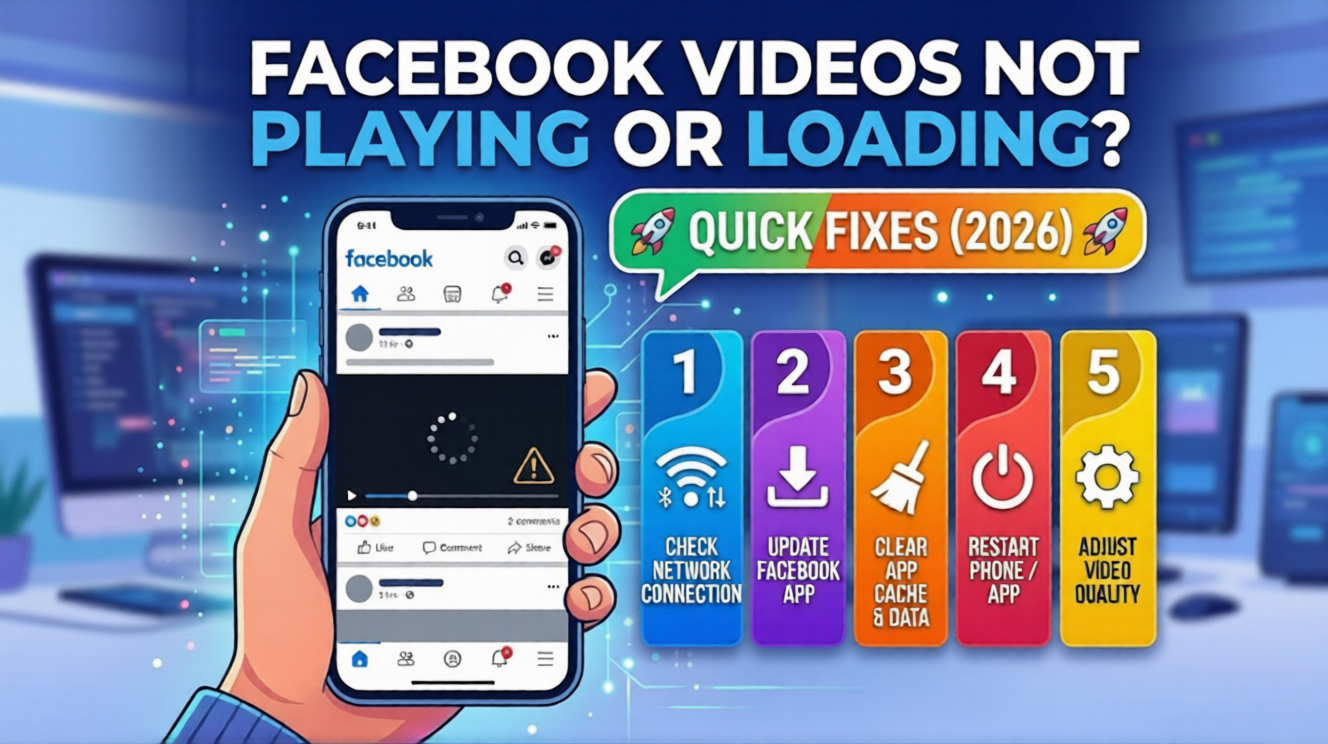
The good news is that you do not need to buy a new phone or call a tech expert to figure this out. In almost every case, you can solve this loading problem yourself in just a few minutes. In this guide, I will walk you through the five fastest ways to get your videos playing smoothly again. Let's fix your app so you can get back to watching your favorite content.
Why Are My Facebook Videos Not Playing?
Before we jump into the exact solutions, it helps to understand what is actually going wrong. When a video refuses to load, it usually comes down to three specific things.
First, your internet connection might be dropping packets of data. Second, your phone's memory might be clogged up with temporary junk files. Third, your app settings might be actively blocking heavy media files to save your data.
Sometimes, Facebook's own servers are just having a bad day. However, if your friends can watch videos and you cannot, the issue is coming from your specific device.
Applying these playback fixes ensures a seamless streaming experience across your feed. If you want to put your fully functional video player to use by archiving live broadcasts that have already concluded, read our verification guide on can you download Facebook live videos after they end.
5 Quick Fixes for Facebook Videos Not Loading
You do not need to be a tech genius to perform these fixes. Follow these simple steps in order, and test a video after each one to see if the problem is solved.
Force Restart the App and Check Your Connection
It sounds basic, but forcing your app to restart is always the best first step. Simply swiping out of the app does not always close it properly.
If you are on an Android device, open your settings, go to your app list, find Facebook, and tap Force Stop. If you are on an iPhone, slowly swipe up from the bottom of your screen and swipe the Facebook window far up and away to kill the process completely.
After reopening the app, double-check your internet. Try switching off your Wi-Fi to force the phone to use cellular data, or vice versa. If your internet router is struggling, the heavy video files will just spin forever.
Clear the Facebook App Cache (The Magic Button)
This is by far the most common reason videos stop working. Over time, Facebook stores thousands of temporary background files on your phone to load pages faster.
When this hidden cache gets too full or the files become corrupted, the video player completely breaks. You will usually just see a black screen instead of a playing video.
If you are on an Android phone, open your Settings, go to Apps, and find Facebook. Tap on Storage, then hit the Clear Cache button. Do not worry, this will not delete your photos or log you out.
If you use an iPhone, Apple makes this slightly harder. You need to go to your Settings, tap General, then iPhone Storage. Find Facebook in the list, tap Offload App, and then reinstall it from your home screen.
Turn Off Data Saver Mode
Both your smartphone and the Facebook app have built-in features designed to save your monthly data allowance. When these modes are active, they purposely stop videos from auto-playing or loading in high quality.
First, let's check inside the Facebook app itself. Tap your profile menu, scroll down to Settings & Privacy, and then tap Media. Make sure the Data Saver box is unchecked. You want your video settings on "Optimized".
Next, check your phone's main settings menu. If you are using an iPhone, look at your Wi-Fi and Cellular settings to make sure Low Data Mode is turned off. On Android, ensure Data Saver is disabled in your network settings.
Update the Facebook App (Or Reinstall It)
Using an outdated version of the Facebook app is a recipe for annoying glitches. Meta constantly pushes out background updates to fix bugs and improve their video player.
If your app is several months old, it might not be able to read the newest video formats on the timeline. Open your Google Play Store or Apple App Store, search for Facebook, and tap the Update button if you see one.
If you are already on the latest version and the videos still buffer forever, you might have a corrupted installation. Delete the app entirely from your phone, restart your device, and download a fresh copy. This acts as a hard reset.
Turn Off Hardware Acceleration (For Browser Users)
Are you trying to watch videos on a laptop or desktop computer instead of a phone? If the video player is showing a weird green screen or crashing your tab, your web browser is likely the culprit.
Modern browsers like Google Chrome and Microsoft Edge use a feature called "Hardware Acceleration." This feature forces your computer's graphics card to render videos. However, if you have an older computer, this feature actually breaks the video player.
To fix this in Chrome, click the three little dots in the top right corner and open your Settings. Type "Hardware Acceleration" into the search bar. Toggle the switch to the off position, and restart your browser. Your videos should play perfectly now.
The Ultimate Workaround: Download Videos to Watch Offline
Sometimes, you just want to watch a specific video without fighting with app settings or waiting for a bad Wi-Fi connection to improve. If a video keeps buffering but you really want to share it, there is a genius workaround.
You can completely bypass the broken Facebook video player by downloading the video directly to your phone's gallery. This way, you can watch it offline, in full quality, with zero loading screens.
To do this safely, just tap the "Share" button on the broken video and copy the link. Then, open your mobile browser and paste it into a secure web tool like the Best Instagram Story Downloader. It will extract the clean video file so you can save it directly to your camera roll.
This trick works for other platforms too. If the Instagram app is glitching, use the FastVidl Instagram Video Downloader to save Reels directly. Likewise, you can use the FastVidl Pinterest Video Downloader to grab high-quality pins offline when the Pinterest app refuses to load.
If videos play but appear low quality, read why Facebook videos are blurry.
Playback issues sometimes include audio problems too. See why downloaded Facebook video has no sound.
Meet the Team Behind FastVidl
FastVidl was built by a dedicated team focused on modern video downloading workflows. By combining technical precision with search expertise, we keep the platform fast, secure and free.
Raja Jahangir: SEO & Growth Expert — Bringing 3 years of SEO experience, Raja helps keep FastVidl user-centric and privacy-focused. View Author Profile Powered by Auroxa Tech.
Conclusion
It is incredibly frustrating when Facebook videos decide to stop playing, especially when you are just trying to relax. However, as you can see, the solutions are actually very straightforward.
Most of the time, a quick app restart, clearing your hidden cache files, or turning off data saver mode is all it takes to fix the problem completely. Keep your app updated, and your media should load without a single hitch.
By following the steps above, you can get back to scrolling, laughing, and sharing your favorite clips without staring at an endless loading screen.
For public Facebook videos and reels, try the Facebook video downloader.
Frequently Asked Questions
Why do Facebook videos play on my phone but not my computer?
This is almost always a web browser issue. You likely need to clear your browser's cookies and cache. If that fails, try turning off "Hardware Acceleration" in your browser settings. Updating your web browser to the latest version also helps significantly.
Does a VPN stop Facebook videos from loading?
Yes, it definitely can. Free or slow VPNs drastically reduce your overall internet speed. If your VPN connection is struggling to keep up, Facebook will not be able to load heavy video files. Try turning your VPN off and refreshing the app.
Why do videos auto-play on Wi-Fi but not on mobile data?
This happens because of the specific media settings inside your Facebook app. Go to your Settings, tap on Media, and look at your Auto-play preferences. You probably have the app set to "On Wi-Fi only" to protect your monthly cellular data allowance.
Why is the video player just showing a black screen with audio?
A black screen with background audio usually means your phone's graphics processor is glitching, or your app cache is completely corrupted. Force closing the app and clearing the cache (as explained in step two above) is the fastest way to fix this specific visual error.
Have more questions? Visit our complete FAQ page.